If Google has indexed one of your Cloudflare Quick Tunnel URLs, a random address like something-random-words.trycloudflare.com, it’s because Quick Tunnels are public, unauthenticated URLs by design, anyone who finds the link, including Googlebot, can crawl and index it. You can’t add a robots.txt file or a Cloudflare Access login wall to trycloudflare.com itself because you don’t own that domain, Cloudflare does. The real fix is to move to a Named Tunnel on a domain you actually control (where Access and noindex rules work), and to use Google’s free Refresh Outdated Content tool to scrub anything that’s already been indexed.
Every claim in this guide is checked directly against Cloudflare’s own developer documentation and Google Search Central’s help pages, not a third party’s guess, current as of September 2026. Where Cloudflare hasn’t published an official answer, mainly the exact mechanism by which Google’s crawler finds a given random tunnel URL in the first place, that’s stated plainly rather than invented.
This isn’t only an SEO annoyance. A handful of the trycloudflare.com URLs currently sitting in Google’s index turn out to be live pirated-streaming sites and, per multiple security researchers, malware delivery infrastructure, not just someone’s forgotten local dev server. Below is exactly why this happens, what actually stops it, and how to clean up what’s already indexed.
💬 Key Takeaway
- Why it happens – Quick Tunnels are public URLs with zero authentication by default, exactly like handing anyone the link.
- robots.txt won’t save you – you don’t own trycloudflare.com, so you can’t publish a robots.txt file at its root.
- The real fix – switch to a Named Tunnel on your own domain, only that supports Cloudflare Access and noindex rules.
- Put it behind a login wall – Cloudflare Access turns your tunnel into a page Google can’t read past.
- Already indexed? – use Google’s free Refresh Outdated Content tool, no domain ownership required.
What Is a Cloudflare Quick Tunnel, And Why Did Google Index Yours?
A Cloudflare Quick Tunnel is what you get when you run cloudflared tunnel --url http://localhost:PORT with no other setup, no Cloudflare account, no domain, no DNS record. Cloudflare instantly hands back a random public HTTPS URL on its own shared trycloudflare.com domain that proxies straight to whatever’s running on your local machine. It’s genuinely useful for a five-minute demo or letting a client preview something on your laptop without deploying anywhere.
The catch is in Cloudflare’s own documentation, stated plainly: “Quick Tunnels are intended for testing and development only.” That’s not a suggestion, it reflects real limits, Quick Tunnels cap out at 200 in-flight requests before returning an HTTP 429 error, and they don’t support Server-Sent Events at all. They were never built to be exposed long-term, and critically, there’s no authentication layer in front of them unless you add one yourself at the application level.
That’s the actual root cause of the indexing problem: the URL is public the instant it’s created. Cloudflare hasn’t published an official explanation of exactly how Googlebot discovers a specific random tunnel URL, so treat the following as informed reasoning, not confirmed fact, the link getting pasted into a public GitHub issue, Slack export, forum post, or chat log that’s itself indexed; a browser extension or security-scanning toolbar phoning the URL home; or simply a search engine’s own web-wide crawl stumbling onto a live, linked page. A `site:trycloudflare.com` search makes the scale of this obvious.
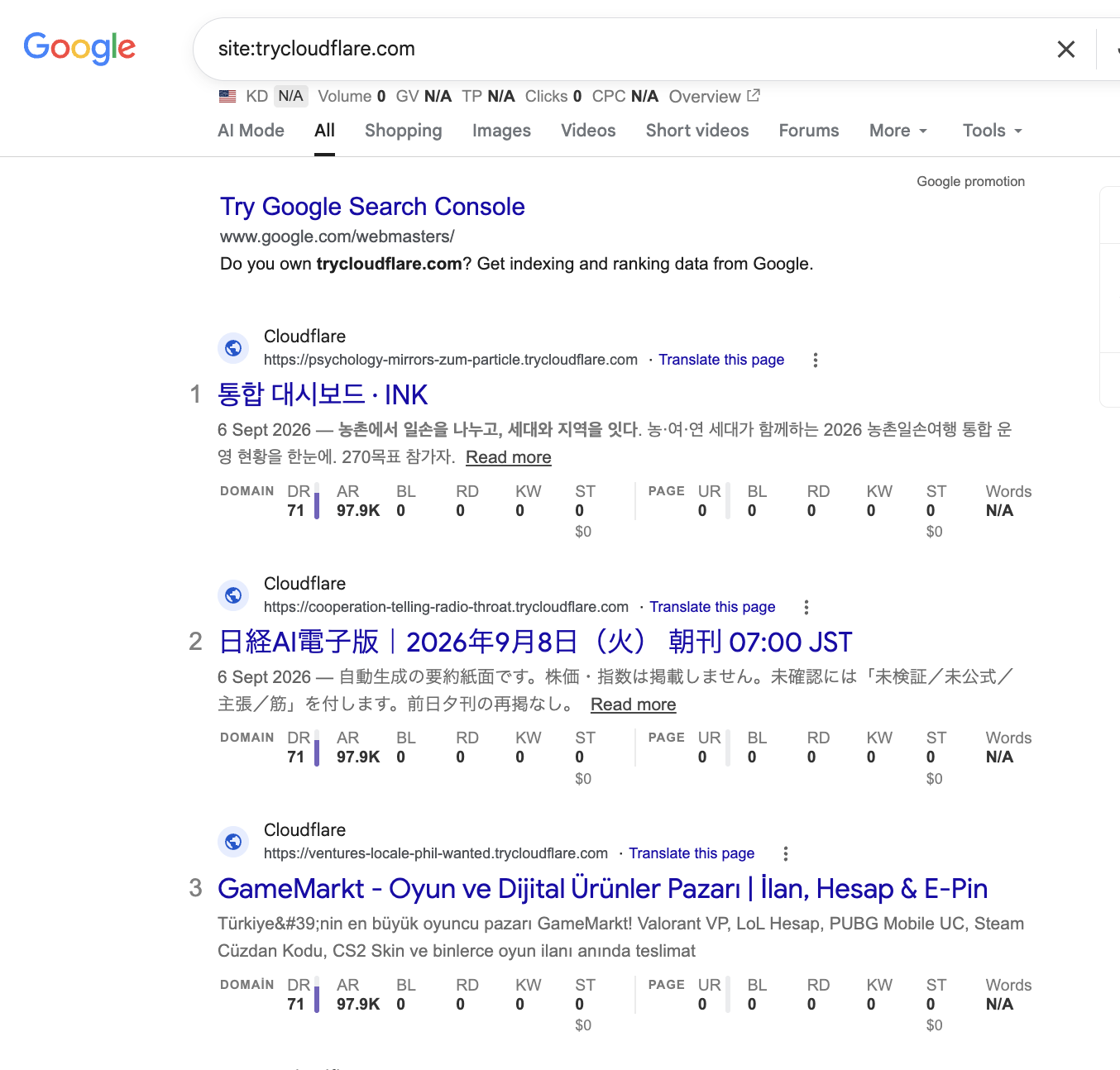
site:trycloudflare.com search in Google turns up dozens of live, indexed Quick Tunnel URLs, most of them clearly never meant to be public.Run that search yourself right now and you’ll see exactly this: random-word subdomains sitting in Google’s index with no idea their owner ever intended that.
Real Example: What Actually Gets Indexed (This Is a Security Problem, Not Just SEO)
This isn’t a hypothetical. Searching indexed trycloudflare.com URLs turns up live sites that were clearly never supposed to be public, including, in one case found during research for this guide, a fully built clone of a Turkish illegal sports-streaming portal running on a random tunnel address.
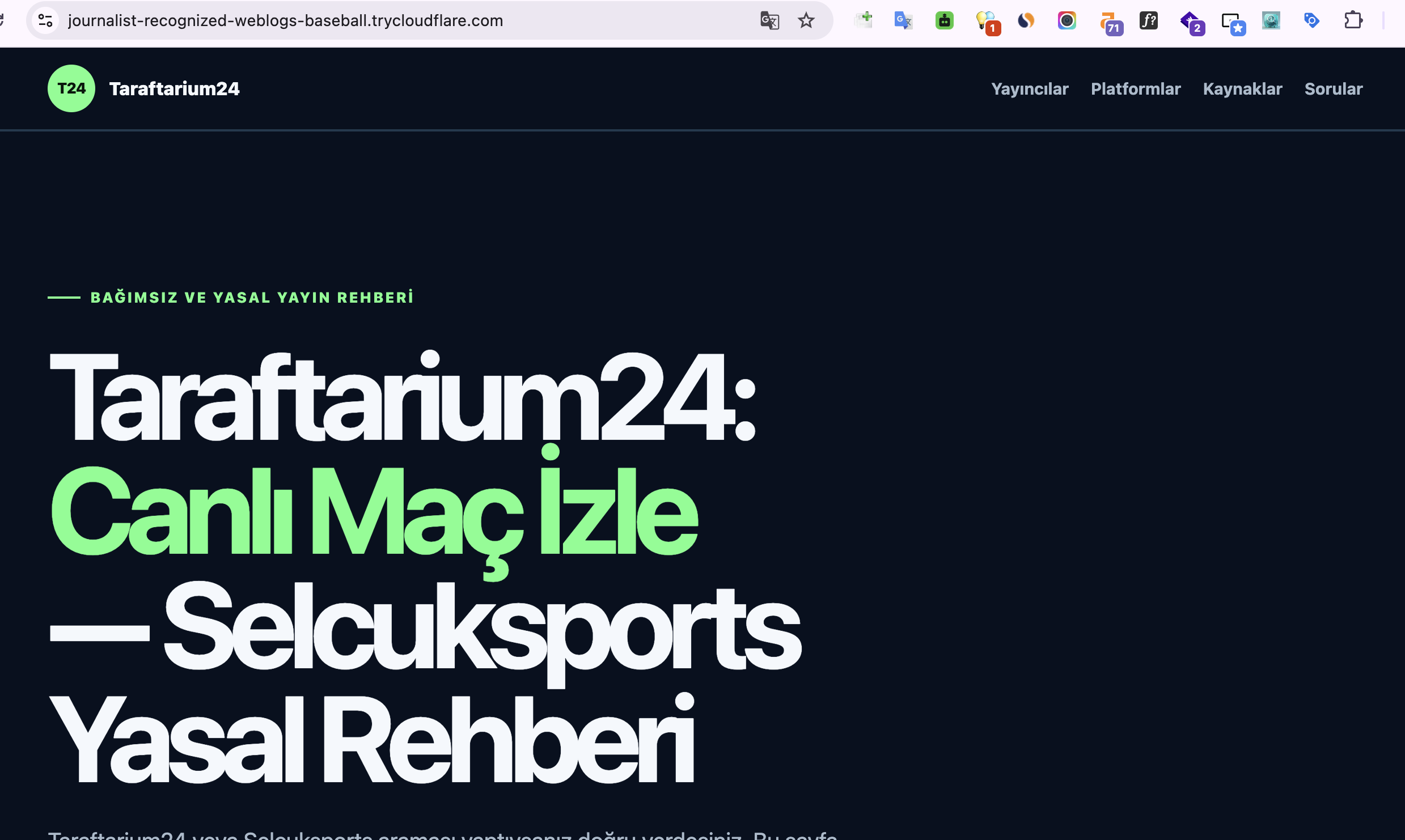
*.trycloudflare.com URL serving a full pirated sports-streaming clone, found through a plain Google search.That example is embarrassing but low-stakes for whoever’s running it. The more serious pattern, documented separately by multiple security research teams, is that threat actors have been actively abusing anonymous TryCloudflare tunnels since 2024 to distribute remote access trojans, AsyncRAT, VenomRAT, XWorm, and Remcos among them, specifically because the URLs are ephemeral, unauthenticated, and inherit trycloudflare.com’s trusted reputation with security filters. BleepingComputer and The Hacker News have both reported on this campaign pattern in detail. A third-party URL scanner has rated trycloudflare.com a mixed trust score for exactly this reason, plenty of legitimate traffic, but also a domain attackers keep coming back to.
None of that means Quick Tunnels are inherently unsafe to use, they’re a legitimate Cloudflare feature. It means an indexed, discoverable tunnel URL is a bigger problem than a stray search result, it’s a signal that anything running behind it, your data, your dev credentials, your unfinished client project, was reachable by literally anyone who found the link.
Why robots.txt and Meta Noindex Don’t Fully Solve This
The instinctive fix is “just add a noindex directive.” Here’s exactly where that works and where it structurally can’t.
- robots.txt at the domain root won’t work, and it isn’t a workaround-able limitation. A robots.txt file has to live at
https://trycloudflare.com/robots.txtto govern that domain, and only Cloudflare itself can publish that, you have no access to trycloudflare.com’s own web root. This is the single most common wrong piece of advice floating around forum threads on this topic. - A noindex meta tag or X-Robots-Tag header from your own local app should work, with one honest caveat. Because a Quick Tunnel is a transparent proxy, whatever your local server returns gets forwarded through untouched, so a
<meta name="robots" content="noindex">tag or anX-Robots-Tag: noindexheader set on your own origin app would reach Googlebot exactly as sent. This is standard, well-documented Google Search Central behavior for how noindex directives work in general. What isn’t documented anywhere is Cloudflare specifically recommending this for Quick Tunnels, so treat it as sound reasoning from how tunnels and robots directives independently function, not an official Cloudflare fix. - Even done correctly, this only prevents future indexing of that one session’s URL. It does nothing for a URL already sitting in Google’s index, and since every new Quick Tunnel gets a fresh random hostname anyway, you’d need to remember to add the header every single time you spin one up. It’s a partial patch, not a structural fix.
The Real Fix: Move from a Quick Tunnel to a Named Tunnel
The durable answer isn’t a header trick, it’s switching tunnel types. A Named Tunnel runs on a domain and DNS zone you actually own inside your own Cloudflare account, which is what unlocks every real control: your own robots.txt, response-header rules, and, most importantly, a genuine authentication wall.
| Quick Tunnel | Named Tunnel |
|---|---|
| Random hostname on trycloudflare.com | Custom hostname on a domain you own |
| No Cloudflare account or DNS record required | Requires a Cloudflare account and an active zone |
| You cannot publish robots.txt or edit headers at the edge | Full control over robots.txt, redirects, and edge headers |
| Cloudflare Access cannot be attached (no zone to attach it to) | Supports Cloudflare Access authentication policies |
| 200 concurrent-request limit, no Server-Sent Events | No Quick Tunnel request cap; built for persistent use |
| Meant for testing and demos only, per Cloudflare’s own docs | Meant for ongoing, production-style exposure |
This isn’t an inference, Cloudflare’s own Access self-hosted application documentation states that a Domain configured for an Access application “must belong to an active zone in your Cloudflare account.” Quick Tunnels, by design, use no zone and no account at all, confirmed on Cloudflare’s Quick Tunnels documentation page. Structurally, there’s no way to bolt Access, or edge-level Transform Rules for response headers, onto an anonymous trycloudflare.com URL. You have to move to a Named Tunnel first.
How to Put Your Tunnel Behind Cloudflare Access (Step-by-Step)
Once you’re on a Named Tunnel, adding a real login wall takes about fifteen minutes. The order of these steps matters more than people expect, set up Access before you ever create the public DNS record, so the hostname is never reachable without a login, not even for the few minutes between creating the tunnel and locking it down.
- Enable Zero Trust on your account, if you haven’t already. Go to
one.dash.cloudflare.com, pick a team name, and activate the Free plan, it covers up to 50 users, more than enough for a personal preview. - Authenticate cloudflared and create the tunnel: run
cloudflared tunnel loginto link the CLI to your account, thencloudflared tunnel create your-tunnel-name. - Write the tunnel’s config file at
~/.cloudflared/config.yml, pointing your chosen hostname (for examplepreview.yourdomain.com) at your local server (http://127.0.0.1:PORT), with a catch-all 404 rule underneath it. Runcloudflared tunnel ingress validateto confirm the file is well-formed before moving on. - Add One-time PIN as a login method: in Zero Trust, go to Settings > Authentication > Login methods, and enable it, this emails a short-lived code to whichever address is trying to sign in.
- Create the Access application before the DNS record exists: Zero Trust > Access > Applications > Add > Self-hosted, target your preview hostname, and add one policy, Allow, with Include set to the specific email addresses that should get in.
- Only now create the DNS record: a proxied CNAME pointing your hostname at
<tunnel-id>.cfargotunnel.com, either by hand in the dashboard or withcloudflared tunnel route dns your-tunnel-name preview.yourdomain.com. - Run the tunnel:
cloudflared tunnel run your-tunnel-name, and watch the terminal for four “Registered tunnel connection” lines, that’s confirmation it’s actually live on Cloudflare’s edge. - Verify it properly, don’t just assume it worked. Curl the hostname without following redirects or sending any login cookie:
curl -sD - https://preview.yourdomain.com/. A correctly locked-down tunnel returns a 302 redirect to<your-team>.cloudflareaccess.com/cdn-cgi/access/login/..., not your actual page content. That redirect target is exactly what Googlebot would see too, a login page, nothing crawlable behind it.
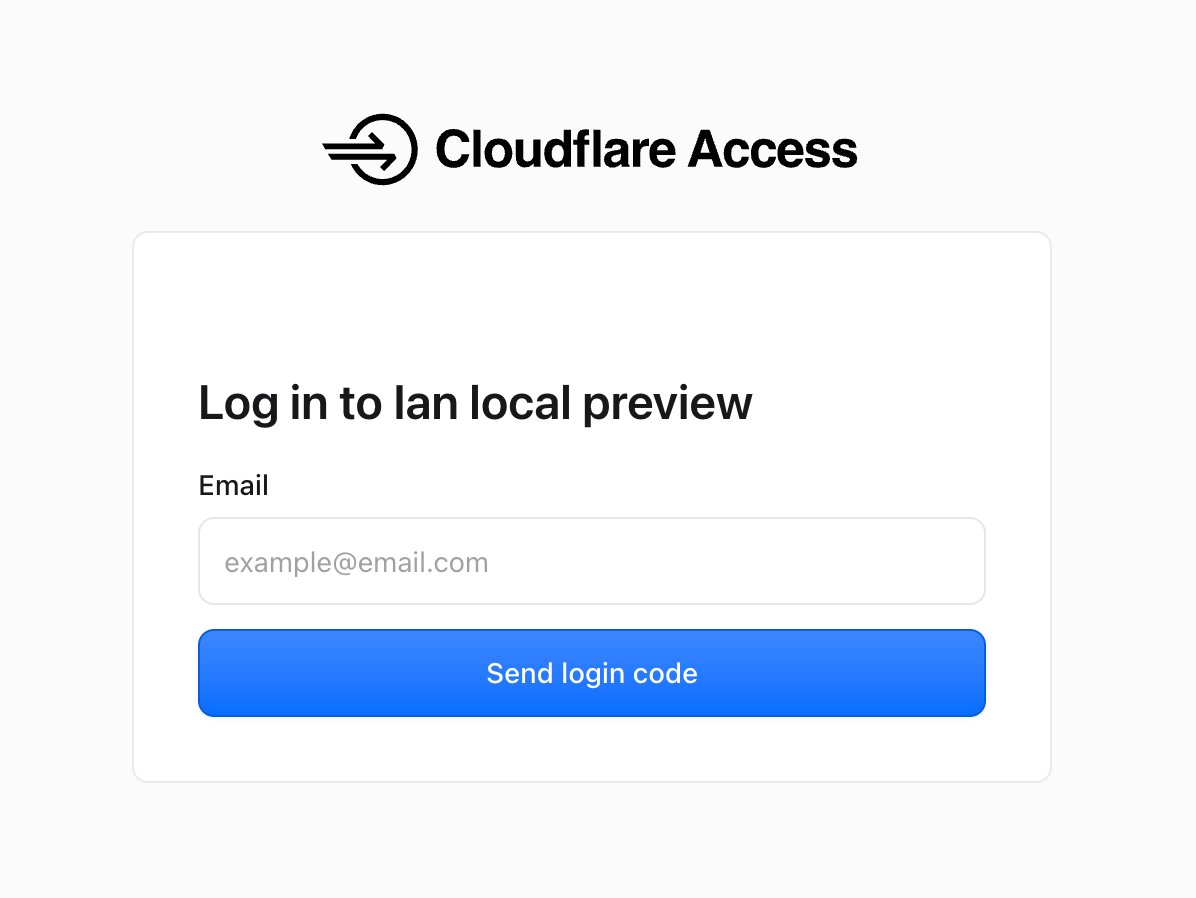
This is genuinely the end state you want for anything beyond a five-minute demo, a login wall a search engine simply cannot get past.
If you’d rather hand this whole sequence to an AI coding agent instead of clicking through it yourself, give it the local port, the hostname, and the allowed login emails as inputs, and be explicit about three rules: configure the Access application before the DNS record ever gets created, never commit the tunnel’s credentials file to a repo, and verify success by checking that the hostname returns Cloudflare’s login redirect rather than real page content, not by just trusting that the steps ran without an error.
How to Remove an Already-Indexed trycloudflare.com URL from Google
Preventing future indexing doesn’t clean up what’s already in Google’s results. For that, you need Google’s free Refresh Outdated Content tool, not the standard Search Console Removals tool.
The distinction matters. Google’s standard Removals tool requires you to own and verify the property in Search Console, which you can’t do for trycloudflare.com since it isn’t your domain. Google’s separate Refresh Outdated Content tool is built specifically for this situation, Google’s own help text says to use it when “you do not own the web page.” No domain verification required.
- Stop the tunnel first. The tool works by having Google re-fetch the URL and confirm the old content is genuinely gone, so the tunnel needs to already be shut down (returning a 404 or simply timing out) before you submit it.
- Go to search.google.com/search-console/remove-outdated-content and paste in the exact indexed URL, the full random subdomain, not just trycloudflare.com generally.
- Submit the request. Google re-crawls the URL, and per Google’s own documentation, once it confirms the page is genuinely gone, the stale result “will be removed from the index and will no longer be shown.”
- Give it time. This isn’t instant, Google describes the process as taking some time to fully process, but it’s the correct, real tool for someone who doesn’t own the domain the content was hosted on.
Quick Tunnel Security Checklist
- Never treat a Quick Tunnel as more than a temporary demo link. Cloudflare’s own docs say it plainly, testing and development only, not persistent or production exposure.
- Shut it down the moment you’re done. An ephemeral tunnel that’s still running is still a live, unauthenticated public URL, whether or not anyone’s found it yet.
- Never paste a Quick Tunnel link into a public channel, a public GitHub issue, a public Slack, an indexed forum post, that’s the most likely way it ends up crawlable in the first place.
- If it needs to stay up longer than a demo, migrate to a Named Tunnel on your own domain and put it behind Cloudflare Access, not behind hope.
- Don’t rely on robots.txt for trycloudflare.com, you can’t publish one there, full stop, that’s not your domain to control.
- If something’s already indexed, use the Refresh Outdated Content tool, not the standard Removals tool, which requires ownership you don’t have here.
Conclusion
A Quick Tunnel getting indexed isn’t a Google bug or a Cloudflare failure, it’s exactly how an unauthenticated public URL is supposed to behave once someone, or something, finds the link. The fix isn’t a clever robots.txt trick you can’t actually deploy on a domain you don’t own, it’s recognizing that Quick Tunnels were built for five-minute demos, and anything that needs to stay reachable longer belongs on a Named Tunnel with your own domain and a real Cloudflare Access policy in front of it.
If what you’re actually trying to do is permanently self-host something rather than tunnel it from a laptop, running it on a proper VPS with your own domain sidesteps this entire problem from the start. Our guides on VPS hosting for self-hosted AI agents and VPS hosting for Jellyfin cover exactly that kind of always-on self-hosting on infrastructure you actually control. And if the tunnel was a client preview for a new site, lock down staging the same way before launch, our SEO checklist for moving a website covers the full staging and launch-day sequence.
Frequently Asked Questions
Why did Google index my trycloudflare.com tunnel URL?
Because Quick Tunnels create a public, unauthenticated HTTPS URL by design, anyone who finds the link, including Google’s crawler, can access and index it. Cloudflare hasn’t published the exact mechanism by which Google discovers a given random URL, but the underlying cause is simply that the URL was reachable at all.
Can I add a robots.txt file to stop trycloudflare.com from being indexed?
No. A robots.txt file has to be published at the domain’s own root, trycloudflare.com/robots.txt, and only Cloudflare controls that domain, not you. You can add a noindex meta tag or X-Robots-Tag header to your own local app instead, which gets forwarded through the tunnel, but that’s not the same as controlling the domain’s robots.txt.
Is trycloudflare.com safe to use?
It’s a legitimate Cloudflare feature, but it’s also been repeatedly abused by attackers to distribute remote access trojans, according to security researchers at BleepingComputer and The Hacker News, precisely because the URLs are anonymous and ephemeral. Use it only for short-lived testing, never for anything sensitive or long-running.
Does Cloudflare Access work on Quick Tunnels?
No. Cloudflare’s own documentation requires an Access application’s domain to belong to an active zone in your Cloudflare account. Quick Tunnels use no account and no zone at all, so Access cannot be attached to one. You have to migrate to a Named Tunnel on your own domain first.
How do I remove an already-indexed trycloudflare.com URL from Google?
Stop the tunnel so the URL returns a 404, then submit the exact URL to Google’s free Refresh Outdated Content tool at search.google.com/search-console/remove-outdated-content. This tool doesn’t require domain ownership, unlike the standard Removals tool, and is built specifically for getting stale results removed from pages you don’t own.
Tell Google you want more of this.
Add DigitalPrahlad as a preferred sourceOne tap, and this site shows up more often in your own Google Top Stories, AI Overviews, and AI Mode results. You can remove this preference anytime you'd like.
Affiliate Disclaimer: This website is reader-supported. Some links are affiliate links, meaning I may earn a small commission at no extra cost to you. I only recommend products and tools I genuinely trust and use myself. Your support keeps DigitalPrahlad free and practical.