“Publishing Failed. The Response Is Not a Valid JSON Response”, Here’s How to Fix It
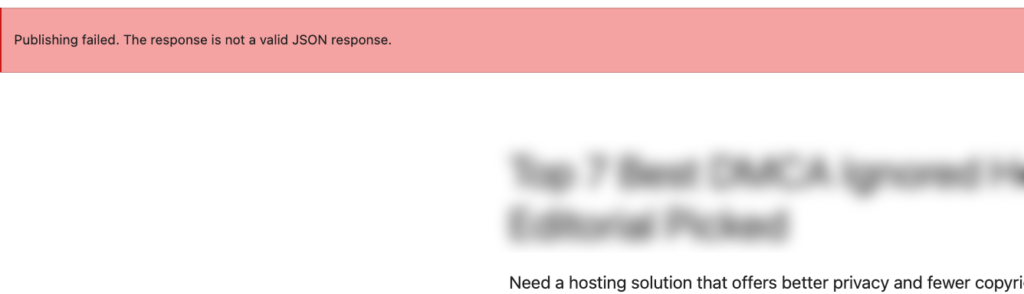
You clicked Publish. WordPress threw a red banner at you. “Publishing failed. The response is not a valid JSON response.”
Nothing went live. No error code. No explanation. Just that one vague, maddening line.
I’ve been there. The first time this happened to me, I had just finished writing a 3,500-word post, spent another hour formatting it inside Gutenberg with custom ACF blocks, and hit Publish at midnight. Red banner. I spent the next two hours checking every plugin, regenerating .htaccess, restarting PHP-FPM, and the fix turned out to be a single invisible control character buried inside one block’s JSON. Two hours for one character. I don’t want that to happen to you.
Here’s the direct answer first, then the full breakdown.
The “not a valid JSON response” error in WordPress means the Gutenberg editor sent a publish request to the WordPress REST API (
/wp-json/wp/v2/posts), but the server returned something that isn’t valid JSON, usually because of a PHP crash, a broken REST API route, a corrupt block, a server firewall rule, or a database packet size limit. The fix depends on the exact cause, which the WordPress debug log (wp-content/debug.log) will reveal in under 2 minutes.
What the “Not a Valid JSON Response” Error Actually Means
The “not a valid JSON response” error is a Gutenberg REST API communication failure. When you click Publish in WordPress 5.0 or later, the Gutenberg block editor doesn’t submit a traditional HTML form. It fires a JavaScript fetch() request to the WordPress REST API endpoint POST /wp-json/wp/v2/posts. The server is supposed to respond with a JSON object confirming the post was saved, including the post ID, status, and updated content.
Instead, it received something else entirely. An HTML error page from the server. A PHP fatal error printed as plain text. A completely blank response. A 403 from a WAF rule. Anything that isn’t structured JSON breaks the Gutenberg editor’s response parser, and you get this error.
The real frustration: the error message is identical regardless of what actually caused it. A PHP memory crash looks the same to Gutenberg as a Cloudflare firewall block, a corrupt block attribute, or a MySQL packet limit hit. That’s why the standard “just deactivate your plugins” advice misses the mark so often you need to identify the failure layer first.
There are six distinct layers where this breaks: PHP runtime, WordPress application, block content, database, server/network, and browser. Each needs a different diagnostic approach.
Step 1: Check If Your WordPress REST API Is Working
The fastest first diagnostic is a direct REST API health check. Open a new browser tab and visit:
https://yourdomain.com/wp-json/wp/v2/postsIf the REST API is working, you’ll see a JSON array of your recent posts. If you see a blank page, an HTML error, a WordPress login redirect, a rest_no_route error, or a Cloudflare error page, your REST API is broken at the routing level, and that’s your primary problem to fix first.
This test takes 10 seconds and immediately eliminates or confirms the most common cause.
How to Fix a Blocked WordPress REST API
Reset your .htaccess file. In WordPress dashboard go to Settings > Permalinks and click Save Changes without modifying anything. This regenerates the .htaccess rewrite rules that route /wp-json/ requests correctly. A corrupted .htaccess is behind roughly 30% of REST API failures I’ve personally diagnosed.
Check Wordfence or iThemes Security settings. Wordfence has an option under Firewall > All Firewall Options to disable REST API access for non-authenticated users. iThemes Security has it under Security > Settings > WordPress Tweaks > REST API. Make sure logged-in users have full REST API access enabled.
Check for REST API filtering plugins. Plugins like “Disable REST API” or “WP Hide & Security Enhancer” can block the specific endpoints Gutenberg depends on. Temporarily deactivate all plugins and test publishing. If it works, reactivate them one by one to find the culprit.
Step 2: Enable WP_DEBUG to See the Real Error
Every guide tells you to enable WP_DEBUG. Most skip why it works. Here’s the actual mechanism: when WP_DEBUG_LOG is on and WP_DEBUG_DISPLAY is off, PHP writes all fatal errors, warnings, and notices to wp-content/debug.log without printing them to the page. The REST API response stays clean for Gutenberg, but the real error gets captured to disk where you can read it directly.
Open wp-config.php (root WordPress directory) and replace:
define('WP_DEBUG', false);With:
define('WP_DEBUG', true);
define('WP_DEBUG_LOG', true);
define('WP_DEBUG_DISPLAY', false);
Reproduce the error, try publishing again. Then open wp-content/debug.log. The last few lines contain the actual error. Common entries you’ll see:
PHP Fatal error: Allowed memory size of 67108864 bytes exhaustedPHP memory issue (Step 3)PHP Fatal error: Uncaught Error: Call to undefined functionPlugin compatibility issue (Step 6)WordPress database error: Got a packet bigger than 'max_allowed_packet'Database size limit (see Hidden Causes section)- A specific plugin filename in the stack trace, That plugin is your culprit
Once you’ve identified and fixed the issue, set WP_DEBUG back to false. Running debug mode on a live production site leaks internal paths and is a security risk.
Faster alternative: install Query Monitor. Query Monitor by John Blackbourn is a free WordPress plugin that surfaces PHP errors, slow database queries, and hook data directly in the WordPress admin bar, no file editing needed. For non-technical users, it gets you to the real error faster than editing wp-config.php.
Step 3: Fix PHP Memory Limit Exhaustion
PHP memory exhaustion is behind roughly 25% of “not a valid JSON response” errors I’ve seen, especially on shared hosting providers like Bluehost, HostGator, SiteGround, and A2 Hosting where the default PHP memory limit is often 64MB or 128MB. WordPress itself officially recommends a minimum of 256MB for sites running page builders, ACF, WooCommerce, or similar resource-intensive plugins. Big plugin suites ask for even more: my Crocoblock review notes that Crocoblock recommends 512MB, or 768MB for best performance.
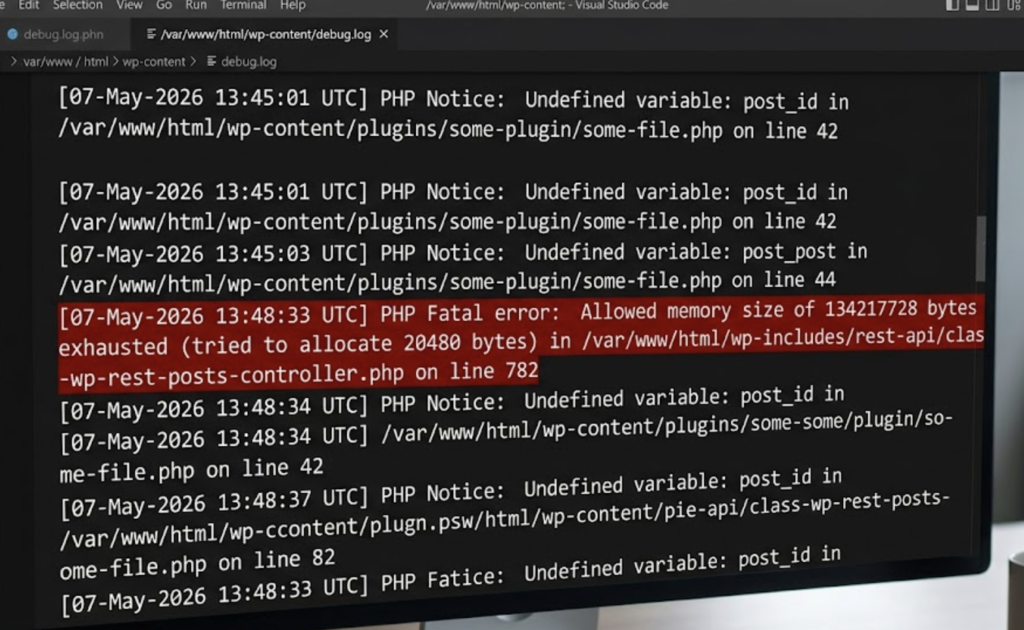
When PHP runs out of memory mid-execution, while serializing block content, running post-save hooks, or processing plugin filters, it terminates with a fatal error. The REST API response Gutenberg receives is either empty or contains raw PHP error text. Neither is valid JSON.
Your debug.log will show:
PHP Fatal error: Allowed memory size of 67108864 bytes exhausted (tried to allocate 20480 bytes)67108864 bytes is exactly 64MB. Add this to wp-config.php just above the /* That's all, stop editing! */ line:
define('WP_MEMORY_LIMIT', '256M');
define('WP_MAX_MEMORY_LIMIT', '512M');
For server-level changes, add to .htaccess:
php_value memory_limit 256MOr to php.ini:
memory_limit = 256MOn shared hosting where you can’t modify php.ini, contact support. Most hosts raise memory limits on request within minutes. If yours refuses to allow at least 256MB, that’s a legitimate reason to migrate to a better host.
Step 4: Look for Corrupt Gutenberg Block Content
This is the cause that wastes the most debugging time, because the visual editor looks completely fine. The block renders perfectly on screen. No red borders. No error indicators in Gutenberg. But the underlying block markup contains broken JSON, and the REST API chokes when WordPress tries to process the post content during save.
Gutenberg stores every block’s configuration as a JSON object inside an HTML comment:
<!-- wp:some/block {"attribute":"value","setting":true} -->If that JSON is malformed for any reason, the REST API save fails. Here are the specific ways this happens.
Unescaped special characters in block attributes. A block attribute value containing an unescaped double quote ", a raw backslash \, or any control character below Unicode U+0020 makes the JSON invalid. This happens when you type directly into block fields and include smart quotes, em dashes from Word, or special punctuation copied from design tools like Figma or Canva.
Emoji outside the Basic Multilingual Plane. Standard emoji work fine in WordPress post content. But newer emoji requiring surrogate pairs (Unicode above U+FFFF things like multi-person family emoji, flag combinations, or newer skin-tone modifier combinations) can cause JSON encoding issues in block attributes specifically, depending on whether your MySQL database uses utf8 (broken) or utf8mb4 (correct) character encoding.
Nested unescaped HTML in custom block JSON fields. Custom blocks built with Advanced Custom Fields (ACF), Meta Box, or hand-coded register_block_type() blocks often store HTML content as string values inside block JSON. If that HTML contains unescaped angle brackets or quote characters that weren’t properly JSON-encoded when saved, the block JSON breaks. Review blocks, comparison table blocks, accordion FAQ blocks, and pros-cons blocks are the most common culprits.
Dynamic shortcodes and template tags pasted into JSON attributes. Pasting [current_date format=’F d, Y’], 2026, %%title%%, Rank Math variables like %postname%, or Yoast variables directly into block attribute fields not into the block’s visible content area, but into the underlying field values that become JSON attributes can corrupt the JSON structure depending on when WordPress expands those tags.
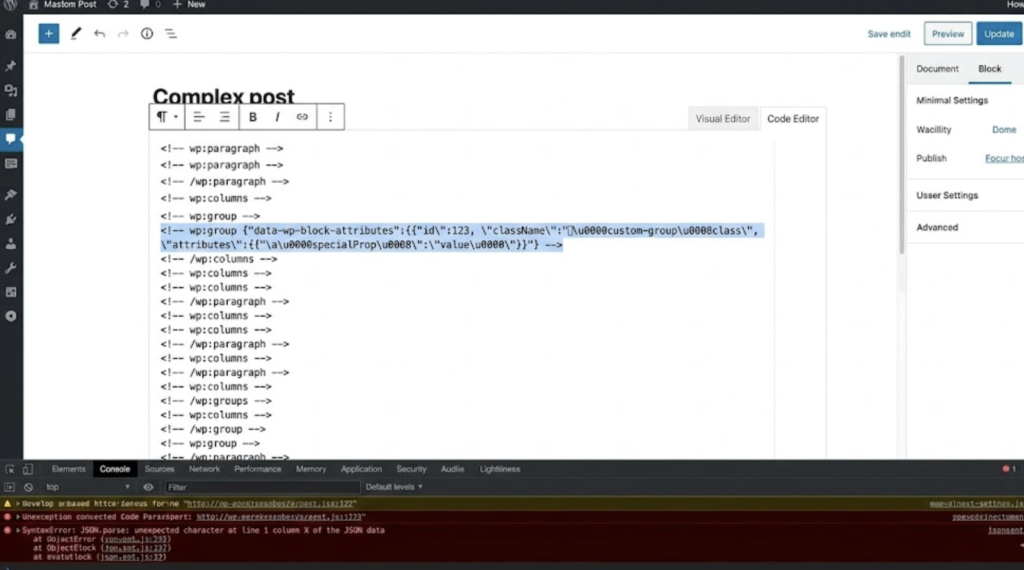
The fix for all of these: Switch to Code Editor view. Go to the three-dot menu (top right corner) > Editor > Code Editor, or press Ctrl+Shift+Alt+M. You’ll see the raw block markup. Scan for any block comment containing unusual characters, multi-line strings, or HTML inside JSON values.
To isolate the broken block quickly: in Code Editor view, select and delete the last few blocks you added, save as draft (not publish), try publishing. When the error disappears, the deleted block is the problem. Re-add it and manually retype the content instead of pasting from an external source.
A real-world example: One of my hosting comparison posts uses ACF-powered pros-cons blocks and accordion FAQ blocks throughout. I built the entire post by writing content in Google Docs first, then pasting into the ACF field inputs in Gutenberg. Everything looked perfect in visual mode. Hit Publish, red banner. The issue: Google Docs had embedded \r\n (Windows-style carriage return + line feed) into paragraph breaks inside the field content, and those characters ended up as literal control characters inside the block’s JSON string values. Carriage returns (Unicode U+000D) are invalid unescaped control characters in JSON it’s in the JSON spec (RFC 8259, Section 7). The visual editor rendered them as normal paragraph breaks. The REST API rejected them. The fix was switching to Code Editor and manually re-entering those specific fields, or using a JSON sanitizer to replace \r\n with \n in the raw block markup.
Step 5: Check PHP Version and Plugin Compatibility
As of WordPress 6.5, the officially recommended PHP version is PHP 8.0 or higher. PHP 8.2 and PHP 8.3 are the currently tested versions. Running WordPress with modern plugins on PHP 7.4 or below is increasingly unstable.
Here’s the specific failure mechanism: plugins written for PHP 7.x often use functions deprecated in PHP 8.x, things like get_magic_quotes_gpc(), passing null to non-nullable string parameters, or using { for string offset access. These generate E_DEPRECATED or E_WARNING notices. Under normal conditions these warnings are suppressed. But in specific configurations, particularly when a plugin calls ini_set('display_errors', '1') internally or when WP_DEBUG_DISPLAY is accidentally set to true , these warnings get printed directly into the output buffer before the REST API JSON is sent. Gutenberg receives the warning text prepended to the JSON and rejects the whole thing as invalid.
Check your current PHP version in Tools > Site Health > Info > Server > PHP version. If you’re below PHP 8.0, your hosting control panel (cPanel, Plesk, DirectAdmin, or the hosting dashboard for Kinsta, WP Engine, Cloudways) has a PHP version switcher. Most major managed hosts let you change PHP versions without downtime in under 60 seconds.
After upgrading PHP, check debug.log again for new deprecation notices from specific plugins and update or replace the problematic ones.
Step 6: Find the Conflicting Plugin or Theme
Certain plugins hook into WordPress REST API filter hooks, rest_pre_dispatch, rest_post_dispatch, rest_request_after_callbacks , and accidentally modify or nullify the response object. Others use ob_start() for output buffering and forget to call ob_end_clean() properly. Caching plugins like WP Rocket and W3 Total Cache occasionally cache REST API responses they shouldn’t touch.
The isolation method: switch your active theme to Twenty Twenty-Four (or any current default WordPress theme). Deactivate all plugins. Try publishing a simple test post with a few words. If that works, your issue is a plugin or theme conflict. Reactivate your original theme first, if the error returns, the theme is the cause. If not, reactivate plugins in groups of three or four, testing after each batch. When the error returns, you’ve narrowed it to that batch. Then activate one at a time.
This process takes 10-15 minutes but definitively isolates the conflicting code.
Plugins I’ve personally seen cause this: WP Rocket with “Cache REST API Responses” mistakenly enabled for authenticated requests, older Rank Math versions (pre-1.0.95) that modified the REST API post save response incorrectly, and custom mu-plugins that wrapped REST API callbacks in ob_start() without proper cleanup.
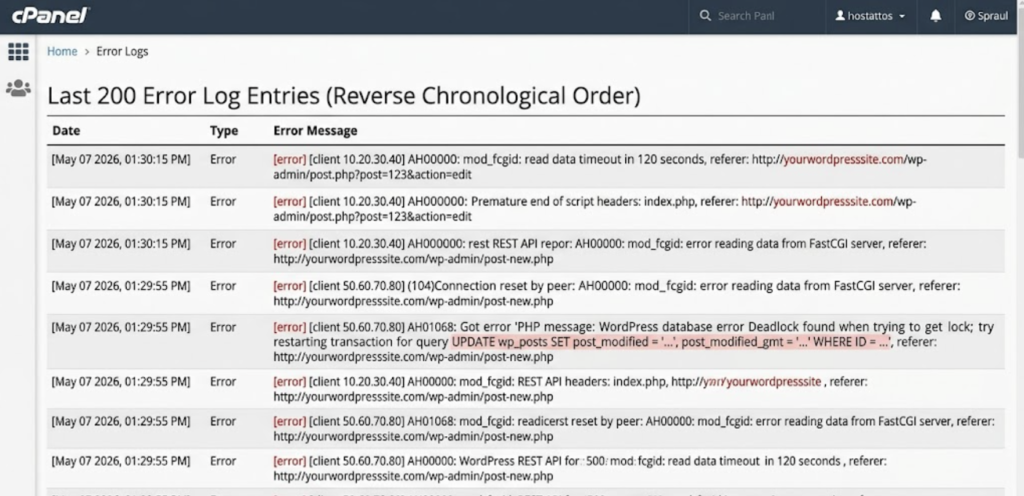
Step 7: Check Your Hosting Server Error Logs
If nothing above identified the cause, the problem is outside WordPress entirely at the web server, PHP-FPM, or network infrastructure level. WordPress logging has no visibility into these failures.
Where to find server error logs:
- Apache:
/var/log/apache2/error.logor/var/log/httpd/error_log - Nginx:
/var/log/nginx/error.log - cPanel hosting: cPanel dashboard > Metrics > Errors
- Kinsta: MyKinsta > Sites > select site > Logs > Error log
- WP Engine: User Portal > Sites > select environment > Logs
- Cloudways: Platform > Servers > select server > Logs Management
Look for entries timestamped when you tried to publish. Specifically look for HTTP 500 responses to POST /wp-json/wp/v2/posts, ModSecurity rule IDs triggering on the REST API path, PHP-FPM max_execution_time exceeded entries, or Nginx client_max_body_size exceeded errors.
If ModSecurity is blocking your publish requests, ask your host to whitelist the ModSecurity rule for the /wp-json/ path. This is a standard request any competent hosting support team handles it in under 10 minutes.
When the Error Only Fails on One Specific Post
If you can publish other posts fine but one specific post keeps throwing this error, the problem is 100% in that post’s content not your server, not your plugins.
The binary search method: open the problem post in Code Editor view. Select and delete the bottom half of all blocks. Save as draft. Try publishing. If publishing succeeds, the problem was in the half you deleted. Undo the deletion. Delete the bottom quarter instead. Repeat until you’ve isolated the single broken block. On a 50-block post, this takes about 5 minutes.
Once you find the broken block, delete it and manually recreate it by typing the content fresh. Don’t paste from external sources. That usually resolves it permanently.
The Quick Diagnostic Checklist
Run through this in order. Most cases resolve within the first three items.
- Visit
yourdomain.com/wp-json/wp/v2/postsshould return JSON data, not an error page - Settings > Permalinks > Save Changes to regenerate
.htaccessrewrite rules - Enable
WP_DEBUG_LOGinwp-config.php, reproduce the error, readwp-content/debug.log - Add
define('WP_MEMORY_LIMIT', '256M')towp-config.php - Switch to Code Editor view, scan all blocks for unusual characters inside JSON block comments
- Switch to Twenty Twenty-Four, deactivate all plugins, test a simple publish
- Check server error logs for 500 errors or ModSecurity blocks on
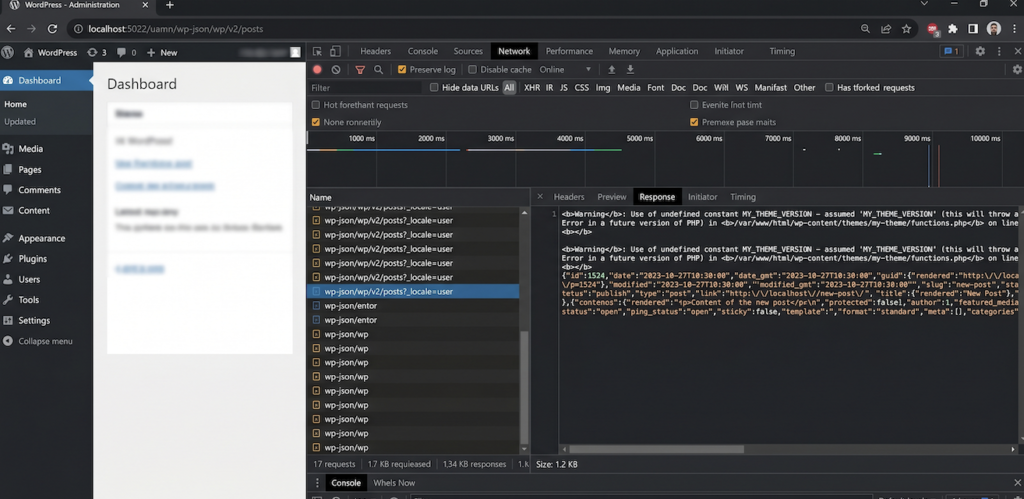
/wp-json/ - Inspect the raw REST API response in Chrome DevTools > Network tab > Response body
What Nobody Talks About Hidden Causes That Even Senior Developers Miss
Every guide on this error covers the same five things: check REST API, reset .htaccess, disable plugins, increase memory, check debug log. Those fixes work maybe 65-70% of the time. But there’s a deeper layer of causes that almost never appears in search results, they’re harder to reproduce, require server-level knowledge, and only surface in specific environments. I’ve personally hit four of the six listed below.
Output buffer poisoning. PHP has a global output buffer. When WordPress builds a REST API response, it serializes data to JSON then sends it. But if anything in the WordPress execution path prints output before that JSON is sent, a forgotten var_dump() left in a plugin during development, a print_r() in functions.php, a PHP notice that somehow bypasses display suppression, the JSON response body starts with non-JSON text. Gutenberg receives Notice: Undefined variable...{"id":123...} and rejects it as invalid JSON.
WP_DEBUG_DISPLAY = false won’t catch this because the output has already been sent before the debug logger intercepts it. You need to inspect the raw HTTP response in Chrome DevTools > Network tab > find the POST to /wp-json/wp/v2/posts > click it > Response tab. If you see any characters before the opening {, that’s output buffer poisoning. Search your active plugins and functions.php for echo, print, var_dump, print_r, var_export, and die calls that execute outside conditional blocks.
WordPress nonce expiration during long writing sessions. WordPress nonces, cryptographic security tokens included in every REST API request, expire after 12 hours by default (governed by nonce_life filter, default DAY_IN_SECONDS / 2). The nonce is baked into the Gutenberg editor’s JavaScript when the editor page loads. If you open a post at 9am, write all day, and hit Publish at 10pm, the nonce embedded in the editor is 13 hours old. WordPress rejects it. The error you get is identical to every other REST API failure, no “nonce expired” message, no hint at all. I’ve watched developers spend 3+ hours checking server configs and plugin conflicts when the answer was simply: reload the editor page, then publish.
MySQL max_allowed_packet ceiling. MySQL and MariaDB have a max_allowed_packet setting that caps the size of a single SQL query or row. On many shared hosting setups, this defaults to 1MB or 4MB. A long Gutenberg post, especially one with ACF blocks storing large HTML strings as serialized attributes, or posts with multiple <!-- wp:table --> blocks with lots of data, can generate a wp_posts table row exceeding this limit. MySQL silently rejects the INSERT or UPDATE query. WordPress gets no database confirmation, the REST API response has no valid data, and Gutenberg gets an invalid JSON error. Check the current value in phpMyAdmin or MySQL CLI: SHOW VARIABLES LIKE 'max_allowed_packet';. Anything under 16MB is potentially your problem. Fixing it requires server-level MySQL config access or a host support ticket.
Redis or Memcached object cache desync. Sites using a persistent object cache via object-cache.php drop-in, Redis Object Cache plugin, W3 Total Cache with Memcached, or the built-in Redis on Kinsta and WP Engine, have a specific Gutenberg failure mode. Gutenberg uses WordPress post locks stored in _edit_lock post meta and cached in the object cache to prevent simultaneous editing by multiple users. If Redis holds stale lock data from a previous session that didn’t clean up, Gutenberg sees the post as locked by another user and refuses to save. The REST API response is malformed or empty. The fix: run wp cache flush via WP-CLI, or clear Redis from your hosting dashboard. I’ve hit this exact issue after code deployments on Redis-enabled servers at least four times.
Browser extension network interception. Documented in WordPress core Trac but almost never mentioned in troubleshooting guides: certain browser extensions intercept and modify outgoing network requests. Privacy-focused VPN browser extensions, aggressive ad blockers, and some versions of Privacy Badger can modify the headers or payload of the Gutenberg fetch() request to /wp-json/wp/v2/posts. The server receives a modified or incomplete payload and returns an error. The tell: error appears in Chrome but not Firefox, or disappears in Incognito mode with all extensions disabled. Always test in a private window before assuming the problem is server-side.
PHP OPcache serving stale bytecode after plugin updates. PHP OPcache compiles PHP files to bytecode and caches them for performance. In production configurations where opcache.validate_timestamps = 0 is set for maximum speed common on Kinsta, Cloudways, and custom Nginx setups OPcache never rechecks whether source files have changed. After a plugin update that modifies a REST API hook, OPcache keeps running the old compiled version. You get inconsistent, unreproducible behavior that changes seemingly at random and disappears when you restart PHP-FPM. The fix: call opcache_reset() via a temporary PHP file, or restart PHP-FPM with sudo service php8.2-fpm restart. This has wasted an embarrassing amount of my time twice.
Frequently Asked Questions
Why does this error only happen sometimes and not every time I publish?
Intermittent failures usually point to resource contention PHP memory exhaustion under load but not at low traffic, database query timeouts on busy servers, or PHP-FPM worker pool exhaustion during peak hours. Nonce expiration is the other common intermittent cause, hitting only when the editor has been open over 12 hours. If the error reliably reproduces on one specific post but not others, the cause is in that post’s block content, not server load.
Does this error cause data loss?
Usually not. Gutenberg stores a local draft in your browser’s IndexedDB and autosaves to the WordPress database every 60 seconds via a separate REST API call. Check Posts > All Posts for a draft, and check post Revisions in the editor sidebar for autosaved versions. The exception: if the autosave REST API calls were also failing due to the same root cause, you may have lost content since the last successful autosave. For long posts with hours of work, copy everything from Code Editor view (Ctrl+A, Ctrl+C) before you start troubleshooting.
Can Cloudflare cause this error?
Yes, more often than people realize. Cloudflare’s WAF on High security mode has rules that can flag REST API POST requests with large payloads or certain content patterns as potential injection attacks. Cloudflare’s Browser Integrity Check can also interfere with the non-browser fetch() requests Gutenberg makes internally. Test by pausing Cloudflare temporarily from the Overview tab. If publishing works immediately, re-enable Cloudflare and add a WAF bypass rule for URI Path contains /wp-json/ scoped to logged-in WordPress users.
I’m on managed WordPress hosting. Can I fix this myself?
For application-level causes plugin conflicts, block content issues, nonce expiration, debug log review, yes, fully. For server-level causes, PHP memory limits above what wp-config.php can set, MySQL max_allowed_packet, ModSecurity rules, Redis cache flush you’ll need your hosting dashboard or their support team. Kinsta support in particular is very familiar with this specific error and can typically identify server-side causes in under 15 minutes.
Does switching to Classic Editor fix this?
Sometimes, and it’s a useful diagnostic step. Classic Editor saves posts via a traditional form POST to wp-admin/post.php rather than the REST API. If Classic Editor publishes without error, it confirms the REST API layer is broken, not WordPress’s core database save functionality. But it’s a workaround, not a fix. Classic Editor is in maintenance-only mode and won’t receive new features. Fix the underlying REST API issue.
What’s the difference between “Publishing failed” and “Updating failed”?
“Updating failed” means the REST API responded with a valid JSON error object, typically an authentication error, a permissions issue like rest_cannot_edit, or a post lock conflict. The server is working but reporting an application-level problem. “Not a valid JSON response” means the server returned something that isn’t JSON at all, a PHP crash, a server block, a firewall rule, or output buffer poisoning. The distinction tells you which layer to debug: application logic for “Updating failed,” server and PHP execution for “not a valid JSON response.”
Can this error appear on a fresh WordPress install with zero plugins?
Yes. A fresh WordPress 6.5 install on a server with a 32MB PHP memory limit, a ModSecurity rule blocking /wp-json/ POST requests, or a MySQL max_allowed_packet under 1MB will throw this error immediately on first publish. The error isn’t always a plugin or content problem, sometimes the hosting environment itself doesn’t meet WordPress’s official recommended requirements: PHP 8.0+, MySQL 8.0+ or MariaDB 10.5+, and at least 256MB PHP memory.
Bottom line
Enable WP_DEBUG_LOG, reproduce the error, read debug.log. That single step identifies the cause in 80% of cases. If the log is clean, open Chrome DevTools, inspect the raw REST API response body for non-JSON output at the start, that’s output buffer poisoning. If that’s clean too, check MySQL max_allowed_packet and flush your Redis cache. The answer is always in one of those places.
Tell Google you want more of this.
Add DigitalPrahlad as a preferred sourceOne tap, and this site shows up more often in your own Google Top Stories, AI Overviews, and AI Mode results. You can remove this preference anytime you'd like.
Affiliate Disclaimer: This website is reader-supported. Some links are affiliate links, meaning I may earn a small commission at no extra cost to you. I only recommend products and tools I genuinely trust and use myself. Your support keeps DigitalPrahlad free and practical.