You purged the cache. You deployed the fix. You even cleared your browser. And the page still shows yesterday’s version, or worse, it loads fresh for you and stale for everyone in Mumbai. If that sounds familiar, you are not alone. CDN caching bugs are hard because the stale copy could be sitting in any one of six places between your server and your visitor.
This guide shows you how to debug CDN caching issues the way a support engineer would: confirm the CDN is actually in the path, read the real headers, prove whether the edge is caching, find out why it isn’t, and purge in the right order. It works for Cloudflare, Amazon CloudFront, Fastly, Akamai, Bunny CDN, Azure Front Door, Vercel, Netlify and QUIC.cloud, and it includes a WordPress section and the SEO side that most guides skip.
How to debug CDN caching issues: the short answer
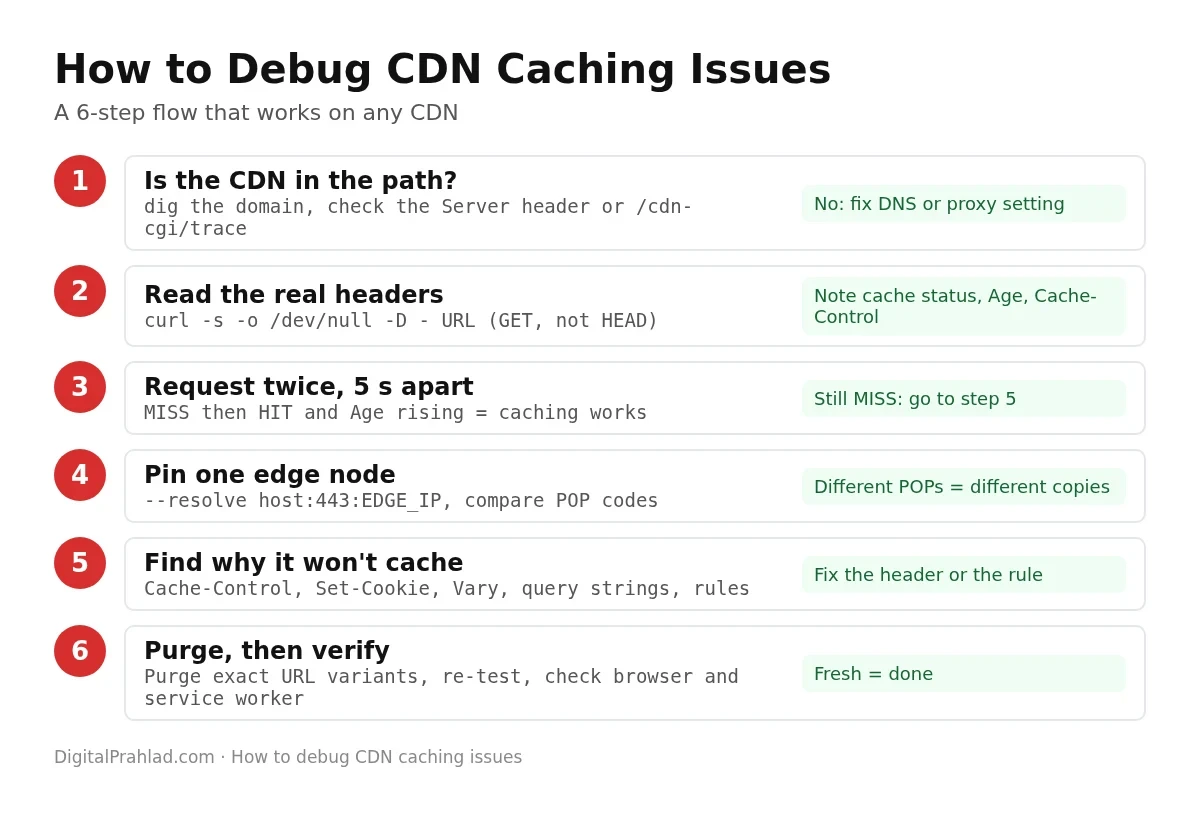
If you only have five minutes, this is the whole method in order. Each step is explained in detail further down.
- Confirm the CDN is in the path. Check DNS and the
Serverheader. If the CDN is not answering, no cache setting will matter. - Read the real response headers with a GET request, not a HEAD request. Note the cache status header,
AgeandCache-Control. - Request the same URL twice, a few seconds apart. MISS then HIT, with
Agerising, means the edge is caching. - Check which edge location answered. Different locations keep different copies, so a HIT in one city says nothing about another.
- If it never caches, find the reason:
Cache-Control,Set-Cookie,Vary, query strings or a cache rule. - Purge from the inside out: origin cache first, then the CDN, then check the browser and any service worker.
First, know where stale content can hide
Most people debug CDN caching issues by staring at the CDN dashboard. But the CDN is only one of six layers that can hold a copy of your page. A stale copy at any layer hides the fresh content behind it, so you need to know which layer you are actually looking at.
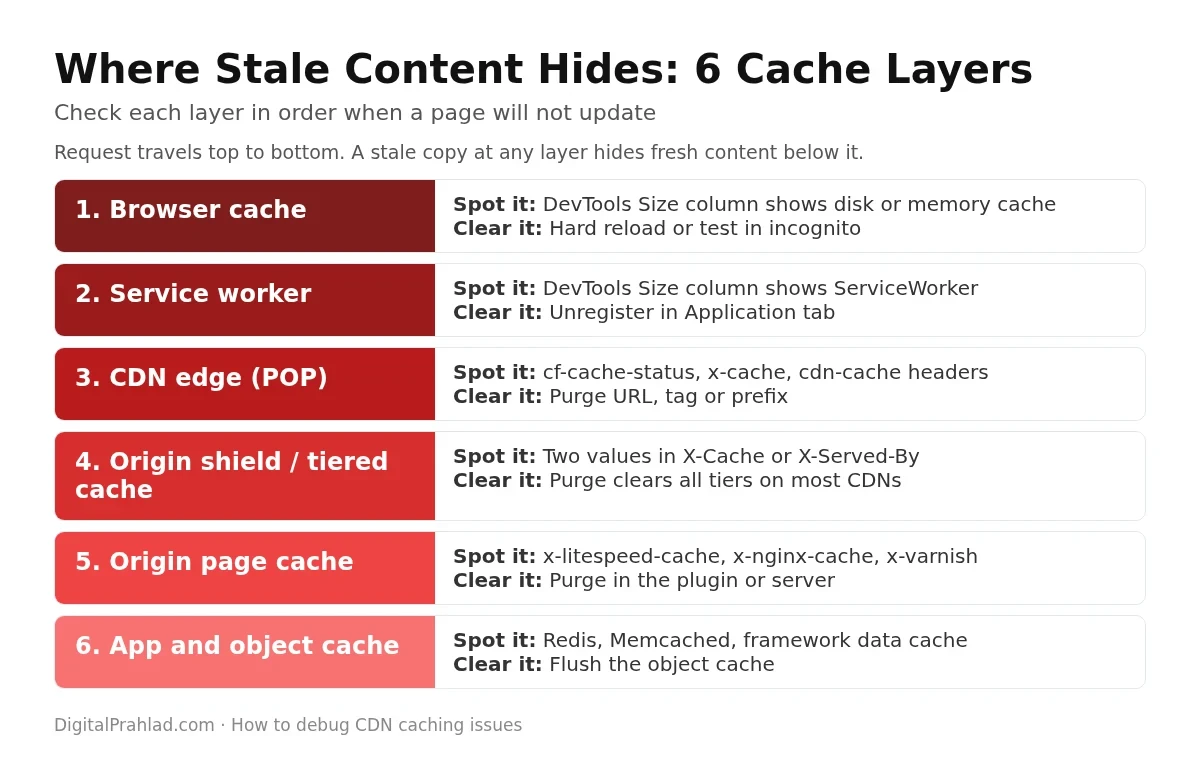
| Layer | How to spot it | How to clear it |
|---|---|---|
| Browser cache | Chrome DevTools, Network tab: the Size column says (disk cache) or (memory cache) | Hard reload, or test in a private window |
| Service worker | The Size column says (ServiceWorker) | DevTools, Application, Service workers, Unregister |
| CDN edge (POP) | A cache status header such as cf-cache-status or x-cache | Purge by URL, tag, prefix or hostname |
| Origin shield or tiered cache | Two values in X-Cache or X-Served-By on Fastly, or a hit with a high Age on Cloudflare Tiered Cache | A normal purge clears all tiers on most CDNs |
| Origin page cache | x-litespeed-cache, x-nginx-cache, x-varnish or a plugin header | Purge in the cache plugin or on the server |
| App and object cache | Redis, Memcached or a framework data cache returns old data | Flush the object cache or invalidate by tag |
Here is a real example from this site. A request for one of my blog posts returns cf-cache-status: DYNAMIC and x-litespeed-cache: hit in the same response. Cloudflare is passing the HTML straight through, and the LiteSpeed server behind it is the one serving from cache. If that page went stale, purging Cloudflare would do nothing. The fix would be a LiteSpeed purge.
Step 1: Confirm the CDN is actually in the path
It sounds obvious, but it’s the step people skip. A DNS record that points straight at your origin, a grey-clouded record in Cloudflare, or a subdomain that was never added to the CDN means requests never touch the edge at all.
# Does the domain resolve to CDN IPs or your origin IP?
dig +short example.com

# Which server answered? Look for cloudflare, CloudFront, Varnish, BunnyCDN...
curl -s -o /dev/null -D - https://example.com/ | grep -iE '^(server|via|x-served-by|cf-ray|x-amz-cf-pop):'

# Cloudflare only: which data centre answered you?
curl -s https://example.com/cdn-cgi/trace | grep -E '^(colo|loc|http)='
If dig returns your server’s own IP, the CDN is bypassed. Fix the DNS record or turn the proxy on before going any further. On Cloudflare, the colo line in /cdn-cgi/trace gives you the three-letter code of the data centre, such as BOM for Mumbai or DEL for Delhi.
Step 2: Read the real response headers
Everything you need to debug CDN caching issues is in the response headers. The trick is to read the headers of a real request, the same kind a browser sends.
# GET request, body thrown away, headers printed. Use this one.
curl -s -o /dev/null -D - --compressed https://example.com/page/

# Avoid this for cache testing:
curl -I https://example.com/page/
Why not curl -I? It sends a HEAD request. Some CDNs and origins treat HEAD differently from GET, and some never cache HEAD at all, so you can see a MISS that real visitors never get. The --compressed flag matters too: browsers ask for gzip or Brotli, and many caches store a separate copy per encoding.
In the browser, open DevTools, go to the Network tab, click the document request and read the Response Headers panel. One warning: if Disable cache is ticked, Chrome sends Cache-Control: no-cache with every request, which some caches honour. Untick it when you are testing the CDN rather than the browser.
The headers that matter
| Header | What it tells you |
|---|---|
Cache-Control | The caching rules from your origin. s-maxage applies to CDNs, max-age to browsers and to CDNs when s-maxage is missing. |
CDN-Cache-Control | A CDN-only version of Cache-Control defined in RFC 9213. If present, supporting CDNs use it ahead of Cache-Control. |
Age | Seconds the object has been in the shared cache. No Age, or Age 0, usually means it just came from the origin. |
Vary | Request headers that create separate cached copies. Accept-Encoding is normal. User-Agent or Cookie can wreck your hit ratio. |
Set-Cookie | A cookie on the response. Many CDNs refuse to cache it, which is usually the right call. |
ETag / Last-Modified | Validators. They let the CDN revalidate with a cheap 304 instead of downloading the whole file again. |
Cache-Status | The standard cache status header from RFC 9211. Netlify and some others use it, for example hit or fwd=miss. |
Step 3: Decode your CDN’s cache status header
There is no single standard header that every CDN uses yet, so each provider names it differently. This cheat sheet covers the ones you are most likely to meet.
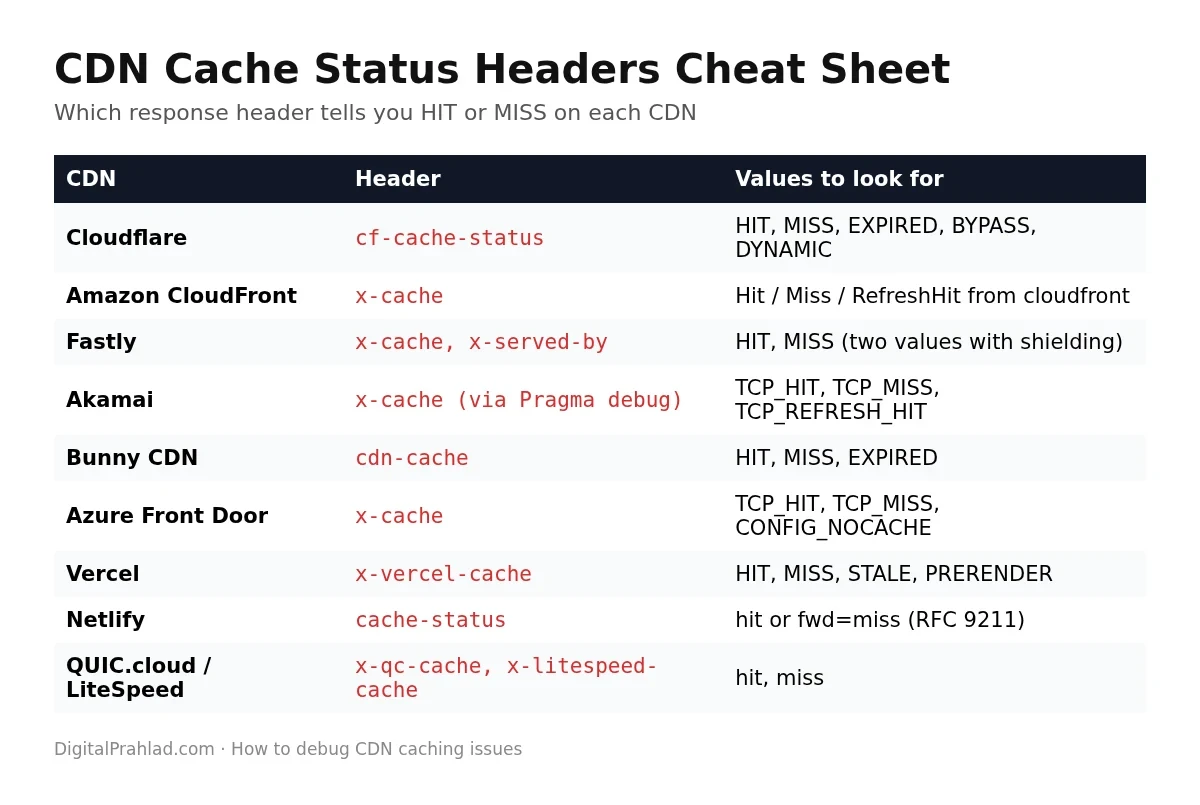
| CDN | Cache status header | Useful extra headers | Debug tip |
|---|---|---|---|
| Cloudflare | cf-cache-status | cf-ray (ends in the data centre code), age | Use /cdn-cgi/trace to see which data centre answered |
| Amazon CloudFront | x-cache: Hit, Miss or RefreshHit from cloudfront | x-amz-cf-pop, x-amz-cf-id | Check which cache policy is attached to the behavior for that path |
| Fastly | x-cache: HIT, MISS, or two values with shielding | x-served-by, x-cache-hits | Send Fastly-Debug: 1 to see TTL and surrogate keys |
| Akamai | x-cache: TCP_HIT, TCP_MISS, TCP_REFRESH_HIT | x-check-cacheable, x-cache-key | Send a Pragma header with akamai-x-cache-on, akamai-x-check-cacheable and akamai-x-get-cache-key, if your property allows it |
| Bunny CDN | cdn-cache: HIT, MISS, EXPIRED | server (shows the edge zone) | Check Perma-Cache if files never seem to expire |
| Azure Front Door | x-cache: TCP_HIT, TCP_MISS, TCP_REMOTE_HIT, CONFIG_NOCACHE | x-azure-ref | CONFIG_NOCACHE means a rule disabled caching |
| Vercel | x-vercel-cache: HIT, MISS, STALE, PRERENDER, REVALIDATED | x-vercel-id | STALE means served stale while revalidating in the background |
| Netlify | cache-status (RFC 9211) | x-nf-request-id | Look for hit or fwd=miss on the Netlify Edge entry |
| QUIC.cloud and LiteSpeed | x-qc-cache, x-litespeed-cache | x-qc-pop | Purge from the LiteSpeed Cache plugin to clear both |
What each Cloudflare cf-cache-status value means
Cloudflare is the CDN I get asked about most, and its status values are more specific than most. Here is what each one means and what to do about it, based on Cloudflare’s own cache response documentation.
| cf-cache-status | Meaning | What to do |
|---|---|---|
| HIT | Served from Cloudflare’s cache | Nothing. Caching works. |
| MISS | Eligible for cache but not stored yet, fetched from origin | Request again. If it stays MISS, the object may be evicted quickly or each request has a different cache key. |
| EXPIRED | Was in cache but past its TTL, so it was fetched again | Normal now and then. If constant, your TTL is too short. |
| STALE / UPDATING | Served an expired copy while refreshing it in the background | Normal with stale-while-revalidate. Not a bug. |
| REVALIDATED | Expired copy confirmed fresh by the origin, often with a 304 | Fine. Set a longer TTL if you see it on every request. |
| BYPASS | Eligible at request time, but the origin response said do not cache, for example no-store, private or a Set-Cookie | Find the header or cookie that blocks caching (Step 5). |
| DYNAMIC | Not eligible for cache at all. HTML and JSON are DYNAMIC by default. | If you want HTML cached, add a Cache Rule that makes it eligible for cache. |
| NONE / UNKNOWN | Cloudflare did not reach a cache decision, often because a Worker or redirect answered first | Check Workers, redirects and other rules on that path. |
The DYNAMIC result catches a lot of people. Cloudflare caches by file extension, and by default it does not cache HTML or JSON. So if your page shows DYNAMIC, Cloudflare is working as designed. It is not broken.
Step 4: Prove the edge is caching with the two-request test
One request tells you very little. Two requests, a few seconds apart, tell you almost everything.
curl -s -o /dev/null -D - --compressed https://example.com/style.css | grep -iE '^(cf-cache-status|x-cache|age):'
sleep 5
curl -s -o /dev/null -D - --compressed https://example.com/style.css | grep -iE '^(cf-cache-status|x-cache|age):'- MISS, then HIT, with Age around 5: the edge stored the object and served it. Caching works.
- HIT both times, Age jumps by about 5: it was already cached. Caching works.
- MISS both times: either nothing is being stored, or each request lands on a different edge or cache key. Go to Step 5.
- HIT, but Age is huge, like 86400 or more: you are looking at an old copy. If the content is wrong, you need a purge, not a config change.
Age also gives you the remaining lifetime of the object. If Cache-Control says s-maxage=3600 and Age is 3000, the edge will keep serving that copy for about 600 more seconds unless you purge it.
Step 5: Pin the test to one edge location
A CDN is hundreds of separate caches. When I tested this site twice in a row, the first request was answered from Hong Kong and the second from Osaka. Each location builds its own cache, so a HIT in one city proves nothing about another. That’s also why a client in Bengaluru can see a stale page while you see the fresh one in Delhi.
How you pin a location depends on how the CDN routes traffic:
- DNS-based CDNs (CloudFront, Akamai and others): different resolvers return different edge IPs. Resolve the hostname, then pin curl to that IP with
--resolve example.com:443:EDGE_IPso every test hits the same edge. - Anycast CDNs (Cloudflare, Fastly, Bunny and others): the same IP is announced everywhere, so you can’t pick a city by IP. Test from a server or VPN in the region that has the problem, and confirm the location from
cf-ray,x-amz-cf-poporx-served-by.
# DNS-based CDN: pin every request to one edge IP
EDGE=$(dig +short example.com | tail -1)
curl -s -o /dev/null -D - --resolve example.com:443:$EDGE https://example.com/page/
If your origin server runs LiteSpeed, the plugin cache is one of those layers to check first. Our guide to the best LiteSpeed Cache settings walks through configuring it, tab by tab, so the origin serves cached pages the CDN can trust.
Step 6: Find out why the CDN won’t cache it
If the edge never returns a HIT, one of a handful of causes is almost always to blame. Check them in this order.
Cache-Control headers that block caching
| Origin sends | What a CDN does with it |
|---|---|
public, max-age=3600 | Caches for an hour at the edge and in browsers |
public, max-age=60, s-maxage=86400 | Browsers keep it 60 seconds, the CDN keeps it a day. A good pattern for HTML. |
private | Browser only. The CDN must not store it. |
no-store | Nobody stores it, anywhere |
no-cache or max-age=0 | May be stored, but must be revalidated with the origin on every request |
stale-while-revalidate=60 | Serves the old copy for up to 60 seconds while fetching a fresh one in the background |
| No Cache-Control at all | The CDN falls back to its default TTL, which differs by provider and by status code |
Frameworks and plugins often add private or no-cache to every response by default, especially when a session has started. Check the MDN Cache-Control reference for the full list of directives.
Set-Cookie on the response
A Set-Cookie header is the most common reason a page refuses to cache. A plugin starts a session, an analytics script sets a cookie server-side, or a cart cookie is sent on every page. Most CDNs will not cache that response, because caching it would hand one visitor’s cookie to the next. Find what sets the cookie and stop it on public pages.
Vary headers that split the cache
Vary: Accept-Encoding is fine. Vary: User-Agent is a problem on CDNs that honour it fully, like Fastly, because there are thousands of different user agent strings, so every visitor gets their own copy and the hit ratio collapses. Vary: Cookie is effectively the same as not caching. Some CDNs, Cloudflare included, ignore most Vary values instead, which avoids the split but can serve the wrong variant if your origin relies on Vary.
Query strings that create new cache keys
By default most CDNs treat /page/ and /page/?utm_source=linkedin as two different objects. Every campaign link, fbclid and gclid creates a fresh MISS. Configure the cache key to ignore marketing parameters: a Cache Rule cache key setting on Cloudflare, or a cache policy with a query string allowlist on CloudFront.
A rule or default that says do not cache
Check the CDN’s own settings for the path: a Cloudflare Cache Rule set to bypass, a CloudFront behavior using the CachingDisabled policy, an Azure rule returning CONFIG_NOCACHE, or a page rule left over from an old migration. On Cloudflare, also remember that HTML is not cached unless a rule makes it eligible.
Symptom, cause and fix: the quick lookup table
When you need to debug CDN caching issues fast, start from what you can see and work backwards. This table covers the problems I see most often.
| What you see | Most likely cause | Fix |
|---|---|---|
| Always MISS, never HIT | Short TTL, cache key changes on every request, or low traffic so objects get evicted | Raise s-maxage, normalise the cache key, consider tiered cache |
| Always BYPASS | Set-Cookie, private, no-store or a bypass rule | Remove the cookie or header on public pages, check rules |
| Always DYNAMIC on Cloudflare | HTML or JSON, not eligible by default | Add a Cache Rule if you want it cached |
| Stale content after a purge | Origin cache still old, browser cache, service worker, or wrong URL variant purged | Purge origin first, then CDN, then test in a private window |
| Fresh for you, stale for others | Different edge locations hold different copies | Purge globally and test from the affected region |
| Old CSS or JS after deploy | Long browser max-age on unversioned filenames | Version filenames, for example style.css?ver=2 or hashed names |
| A new page shows 404 for a few minutes | The CDN or origin cached a 404 from before the page existed | Purge the URL. Cloudflare caches 404s for 3 minutes by default. |
| Mobile users see the desktop version | One cache key for all devices while the origin serves different HTML | Use responsive HTML, or add device type to the cache key |
| Logged-in content shown to strangers | Cache everything rule caching pages for logged-in users | Bypass on session cookies right now, then purge everything |
| Slow even on HIT | Large uncompressed files, or the edge is far from the user | Enable Brotli, check which location answered |
The 404 row is one I hit myself. I tested a new redirect URL before I had created it, the server cached the 404, and for several minutes the brand new redirect looked broken even though it was set up correctly. One purge fixed it. If a page you just published looks missing, purge before you start rewriting anything.
The logged-in row is the one to take seriously. A cache everything rule without a cookie bypass can serve one customer’s account page, with their name and order details, to the next visitor. If you ever see it, bypass first and investigate second.
Why purging doesn’t fix it (and the right purge order)
You hit purge, wait, reload, and nothing changes. These are the usual reasons:
- You purged the CDN before the origin. The CDN fetched a fresh copy from an origin that was still serving the old cached page, then cached the old page again. Always purge inside out: object cache, then origin page cache, then CDN.
- You purged a different URL.
https://example.com/page,/page/, the www version and the same page with query strings can all be separate objects. Purge the exact URL that is stale, or purge by prefix, tag or hostname. - The browser still has it. A long
max-agemeans the browser never asks the CDN at all. Test in a private window, and version your static files. - A service worker is serving it. Progressive web apps and some plugins cache pages in a service worker. Unregister it in DevTools to confirm.
- The purge hasn’t finished. Cloudflare and Fastly purges usually finish within seconds. CloudFront invalidations can take a few minutes, and the first 1,000 invalidation paths each month are free.
- Device or language variants. If you cache by device type or country, there may be several copies of the same URL. Purge the URL or use a tag that covers all variants.
CDN caching issues on WordPress
WordPress adds its own layer, because most sites run a page cache plugin and a CDN at the same time. That double caching is behind most WordPress CDN caching issues I debug.
- Identify both caches. Look for
x-litespeed-cache,x-wp-rocketor a similar plugin header next to the CDN header. Our own site showsx-litespeed-cache: hitwithcf-cache-status: DYNAMIC, so LiteSpeed is the cache that matters for HTML. - Let one tool control purging. LiteSpeed Cache with QUIC.cloud, WP Rocket’s Cloudflare add-on and Cloudflare APO can each purge the CDN when you update a post. Two tools fighting over the same cache causes random stale pages.
- Bypass on WordPress cookies. Never cache HTML when the request has
wordpress_logged_in_,wp-postpass_,comment_author_,woocommerce_items_in_cartorwp_woocommerce_session_cookies. - Exclude the dynamic paths.
/wp-admin/,/wp-login.php,/cart/,/checkout/and/my-account/should never be cached at the edge. - Check the ver parameter. WordPress adds
?ver=to CSS and JS. If your CDN ignores query strings in the cache key, a theme update can keep serving the old file. Either includeverin the cache key or purge after updates.
If you are about to move a WordPress site behind a new CDN or host, read the WordPress migration guide first. Stale DNS and cached redirects are behind a lot of post-migration panic. For WooCommerce stores, the cart and session rules matter even more, which is one reason to pick a host from the best managed WooCommerce hosting list that handles them for you.
How CDN caching problems hurt SEO
Googlebot gets the same cached responses your visitors get. That makes caching bugs an SEO problem, not just a developer one.
- Cached noindex or canonical tags. You remove a noindex tag, but the edge keeps serving the old HTML, so Google keeps seeing noindex until the cache expires or you purge.
- Cached robots.txt. Cloudflare caches robots.txt by default. Purge it whenever you change it, especially during a launch or migration.
- Cached redirects. Cloudflare’s default edge TTL for a 301 is 120 minutes, and browsers can keep a 301 much longer. Test redirects on a staging hostname before going live.
- Cached errors. A cached 404 or 5xx tells Googlebot the page is gone or the server is struggling, which can slow crawling.
- Slow TTFB on cache misses. If HTML is never cached, every crawl and every visit waits for the origin. A healthy edge HIT is one of the cheapest ways to improve time to first byte, which feeds into Largest Contentful Paint.
- Preview hostnames getting indexed. Tunnel and preview URLs that skip your CDN rules can leak into search. I covered one case in how to stop Google indexing trycloudflare tunnel URLs.
Caching is one of the first things I check in a technical SEO review, and it’s on the list in the SEO checklist for website migration, because a migration is when stale redirects and cached noindex tags do the most damage.
A reusable cache check script
Save this as cachecheck.sh. It sends the same GET request several times and prints only the headers you need to debug CDN caching issues on any provider.
#!/usr/bin/env bash
# Usage: ./cachecheck.sh https://example.com/page/ [requests] [delay]
url="$1"; n="${2:-3}"; d="${3:-5}"
for i in $(seq 1 "$n"); do
  echo "--- request $i at $(date +%T)"
  curl -s -o /dev/null -D - --compressed "$url" | grep -iE \
    '^(cf-cache-status|x-cache|cdn-cache|x-vercel-cache|cache-status|x-qc-cache|x-litespeed-cache|age|cache-control|cdn-cache-control|vary|set-cookie|cf-ray|x-amz-cf-pop|x-served-by|server):'
  [ "$i" -lt "$n" ] && sleep "$d"
done
Run it with ./cachecheck.sh https://yoursite.com/page/ 3 5. You’ll see straight away whether the status flips to HIT, whether Age climbs, and whether a cookie or Vary header is getting in the way.
Prevention checklist
- Set
s-maxagefor the CDN and a shortermax-agefor browsers on HTML. - Give static files long lifetimes and versioned or hashed filenames.
- Add
stale-while-revalidateso visitors never wait for a refresh. - Keep
Set-Cookieoff public pages. - Strip marketing query parameters from the cache key.
- Bypass the cache for logged-in, cart and checkout traffic.
- Use tag or prefix purges from your CMS instead of purge everything.
- Purge inside out after every deploy: object cache, origin cache, CDN.
- Monitor your cache hit ratio in the CDN dashboard and investigate sudden drops.
If your site has caching problems you can’t pin down, a full SEO audit covers headers, crawling and speed together. And if the real problem is a slow origin, the dedicated servers for high traffic websites list is a good place to start.
Frequently asked questions
How do I check if my CDN is caching a page?
Request the URL twice with curl a few seconds apart and read the headers. If the cache status header changes from MISS to HIT and the Age header increases, the CDN is caching it. Use a GET request, not curl -I.
Why does Cloudflare show cf-cache-status DYNAMIC?
DYNAMIC means Cloudflare decided the request is not eligible for cache. By default Cloudflare does not cache HTML or JSON. Add a Cache Rule that makes the path eligible for cache if you want it cached.
What is the difference between BYPASS and MISS?
MISS means the object can be cached but was not in the cache yet. BYPASS means the response was not cached because the origin headers, a cookie or a rule said not to cache it.
Why is my site still showing old content after purging the CDN?
The usual causes are an origin page cache that is still stale, the browser cache, a service worker, or purging a different URL variant. Purge the origin first, then the CDN, and test in a private window.
What does the Age header mean?
Age is the number of seconds the object has been in the shared cache since it was fetched or revalidated. It only appears on cached responses on most CDNs, so a rising Age confirms caching.
Does CDN caching affect SEO?
Yes. Googlebot sees cached responses, so a cached noindex tag, redirect, robots.txt or error page can affect indexing. Healthy caching also lowers time to first byte, which helps page speed.
Should I use curl -I to test CDN caching?
It’s better not to. curl -I sends a HEAD request, which some CDNs and servers handle differently from GET. Use curl -s -o /dev/null -D – with the URL to see the headers of a real GET request.
Tell Google you want more of this.
Add DigitalPrahlad as a preferred sourceOne tap, and this site shows up more often in your own Google Top Stories, AI Overviews, and AI Mode results. You can remove this preference anytime you'd like.
Affiliate Disclaimer: This website is reader-supported. Some links are affiliate links, meaning I may earn a small commission at no extra cost to you. I only recommend products and tools I genuinely trust and use myself. Your support keeps DigitalPrahlad free and practical.