LiteSpeed Cache is the fastest free caching plugin for WordPress, but out of the box it barely touches your speed. The real wins are in the settings, and most guides either dump every option on you or skip the ones that actually move your scores. This guide fixes that: the best LiteSpeed Cache settings for 2026, tab by tab, with the best LiteSpeed Cache settings to switch on and the risky ones to leave alone.
Everything below is based on LiteSpeed Cache 7.9, the current version, and works whether you are on LiteSpeed, OpenLiteSpeed or any host using QUIC.cloud. Follow it top to bottom, purge the cache after each major change, and test your site in an incognito window. By the end you will have a configuration that genuinely speeds up WordPress and helps you pass Core Web Vitals.
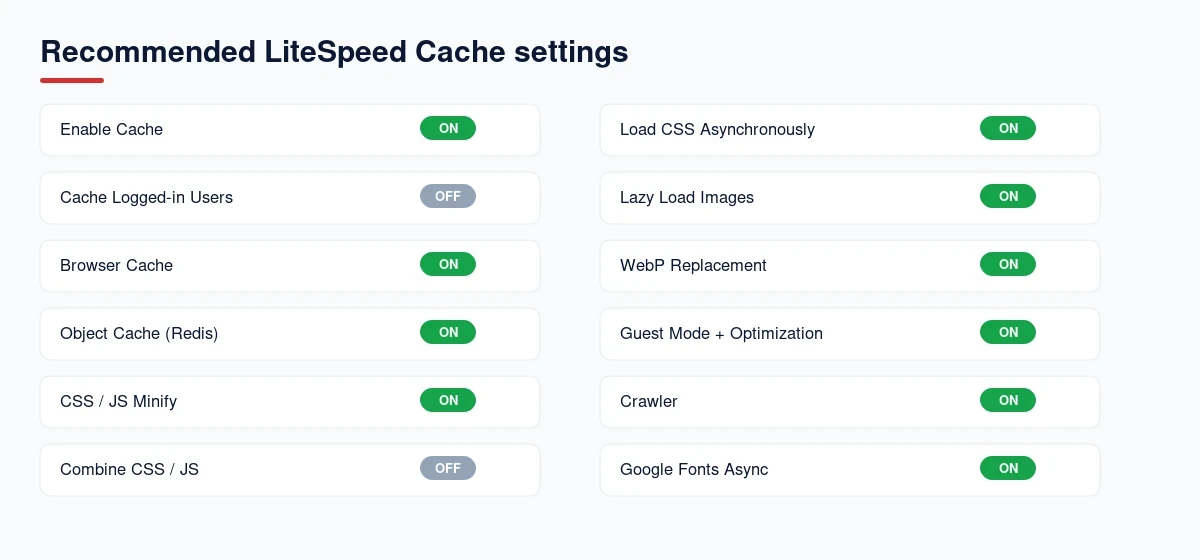
- General → request the domain key, add your server IP, and turn on Guest Mode and Guest Optimization
- Cache → Enable Cache ON; Cache Logged-in Users OFF; REST API and Login Page ON; Cache Mobile OFF
- Object Cache → ON if your VPS has Redis or Memcached (most YouStable VPS plans do)
- Browser Cache → ON
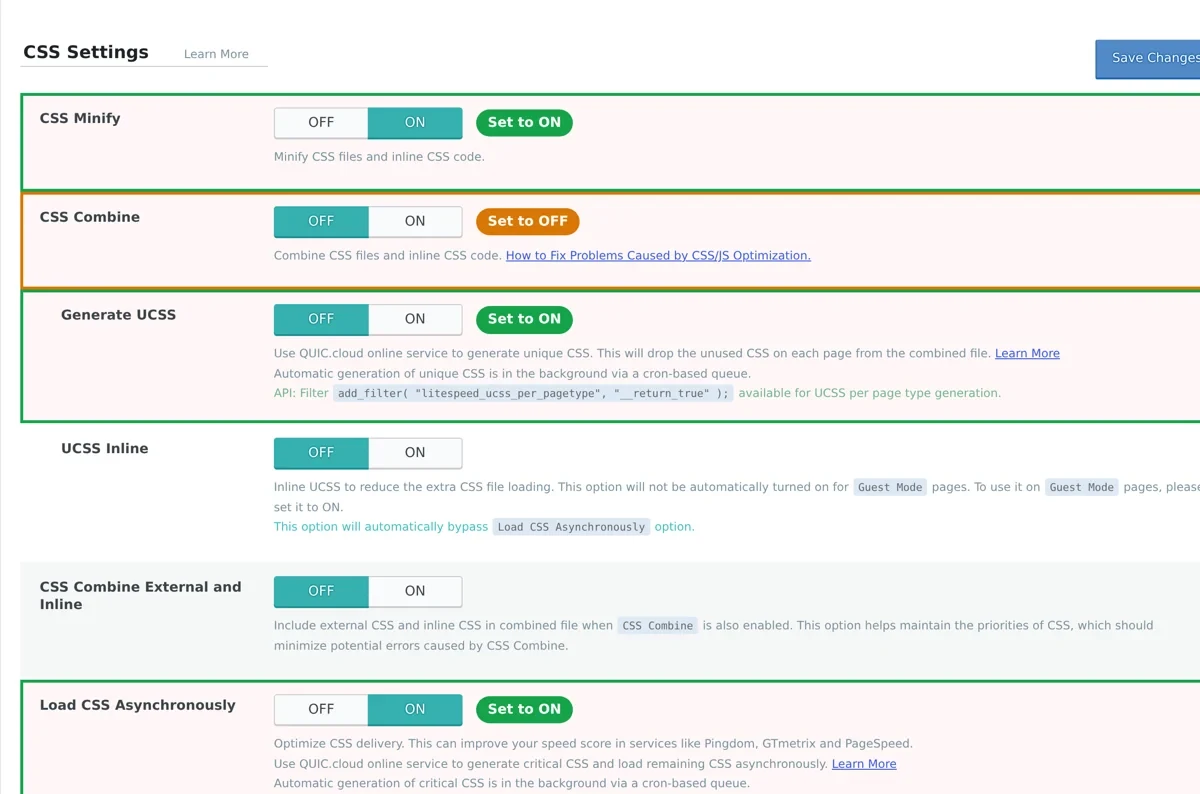
- CSS → Minify ON, Combine OFF, Generate UCSS ON, Load CSS Asynchronously ON
- JS → Minify ON, Combine OFF, Load JS Deferred ON, JS Delay optional
- HTML → HTML Minify ON, add DNS prefetch and preconnect for your fonts and CDN
- Media → Lazy Load ON (exclude logo and hero), Add Missing Image Dimensions ON, VPI ON
- Fonts → Font Display Swap ON, Load Google Fonts Asynchronously ON, Localize Resources ON
- CDN → set up the QUIC.cloud CDN, or use the dedicated Cloudflare setting
- Image Optimization → send the request, WebP Replacement ON, Preserve EXIF ON
- Crawler → ON if your server allows it; on shared plans it may be disabled, and Guest Mode covers most of it
- Database → set Revisions Max Number (for example 10), then Clean All
- Toolbox → Purge All after changes, then test in an incognito window
What LiteSpeed Cache actually does
LiteSpeed Cache stores a ready-made copy of each page so the server sends it instantly instead of building it from scratch every visit. On top of that page cache, the plugin also minifies CSS and JavaScript, lazy loads images, converts images to WebP, connects a CDN and cleans your database. The caching is server-level and only reaches its full speed on LiteSpeed or OpenLiteSpeed servers, though the optimisation features work anywhere through QUIC.cloud.
Before you change any settings
- Confirm your host runs LiteSpeed or OpenLiteSpeed. A LiteSpeed VPS, such as a YouStable VPS plan, gives you the full server-level page cache; on Apache or NGINX the page cache will not work, but you can still use QUIC.cloud and the optimisation features. If you are choosing a host, our list of the best cloud hosting providers flags which ones run LiteSpeed.
- Take a full backup, so you can roll back if an aggressive optimisation breaks your layout.
- Install LiteSpeed Cache from the plugins screen and keep it updated to 7.9 or newer.
- Know how to clear it: the toolbar Purge All is your undo button for almost every problem.
Fastest setup: apply a preset first
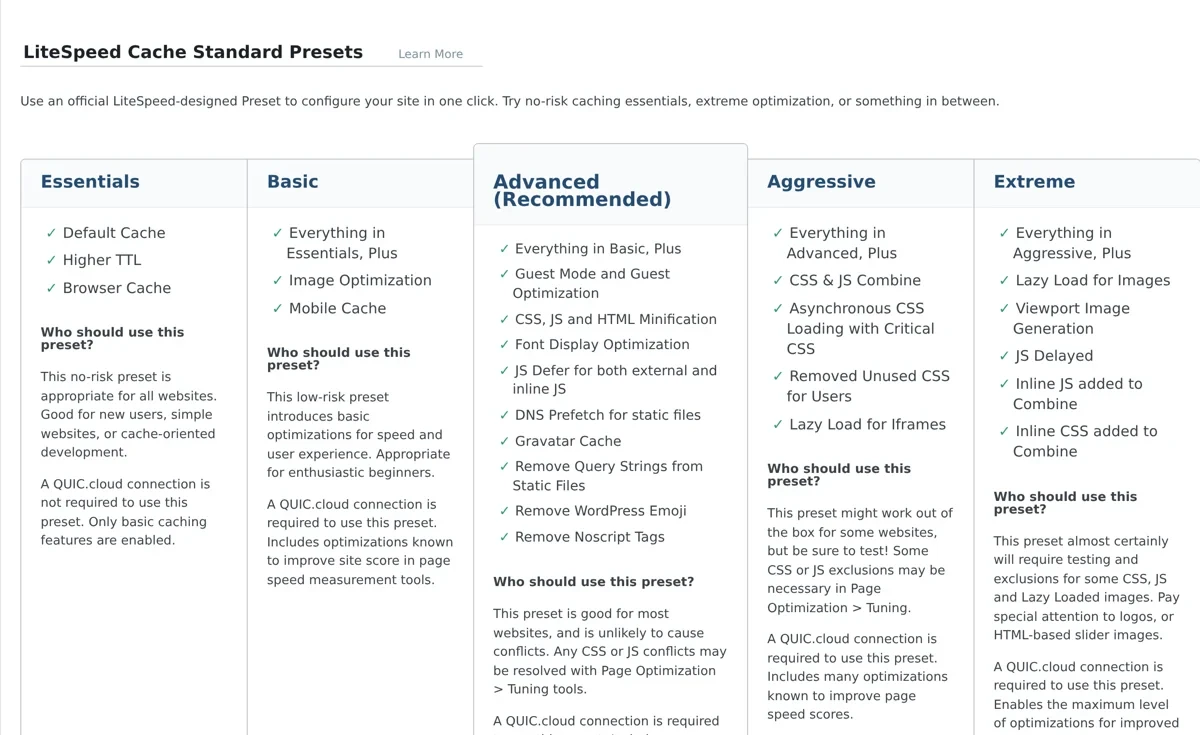
Open LiteSpeed Cache, Presets. Presets apply a whole group of tested settings in one click, so you do not have to toggle everything by hand. From safest to fastest they are:
| Preset | Best for |
|---|---|
| Essentials | Cache only, the safest starting point |
| Basic | Cache plus light, low-risk optimisation |
| Advanced (recommended) | Strong speed with safe defaults, the right pick for most sites |
| Aggressive | Heavier CSS and JS optimisation, test carefully |
| Extreme | Maximum optimisation, expect to add exclusions |
LiteSpeed Cache settings, step by step
These are the LiteSpeed Cache settings that matter, tab by tab. Change one group at a time and purge the cache so you can see what each one does.
Step 1: General and Guest Mode
- In General, click Request Domain Key, then Link to QUIC.cloud. The key unlocks the CDN, image optimisation and critical CSS.
- Turn Guest Mode ON so first-time visitors get a fast cached page instantly.
- Turn Guest Optimization ON to serve those visitors fully optimised assets too.
- Set Server IP to your origin IP to speed up QUIC.cloud communication.
Step 2: Cache
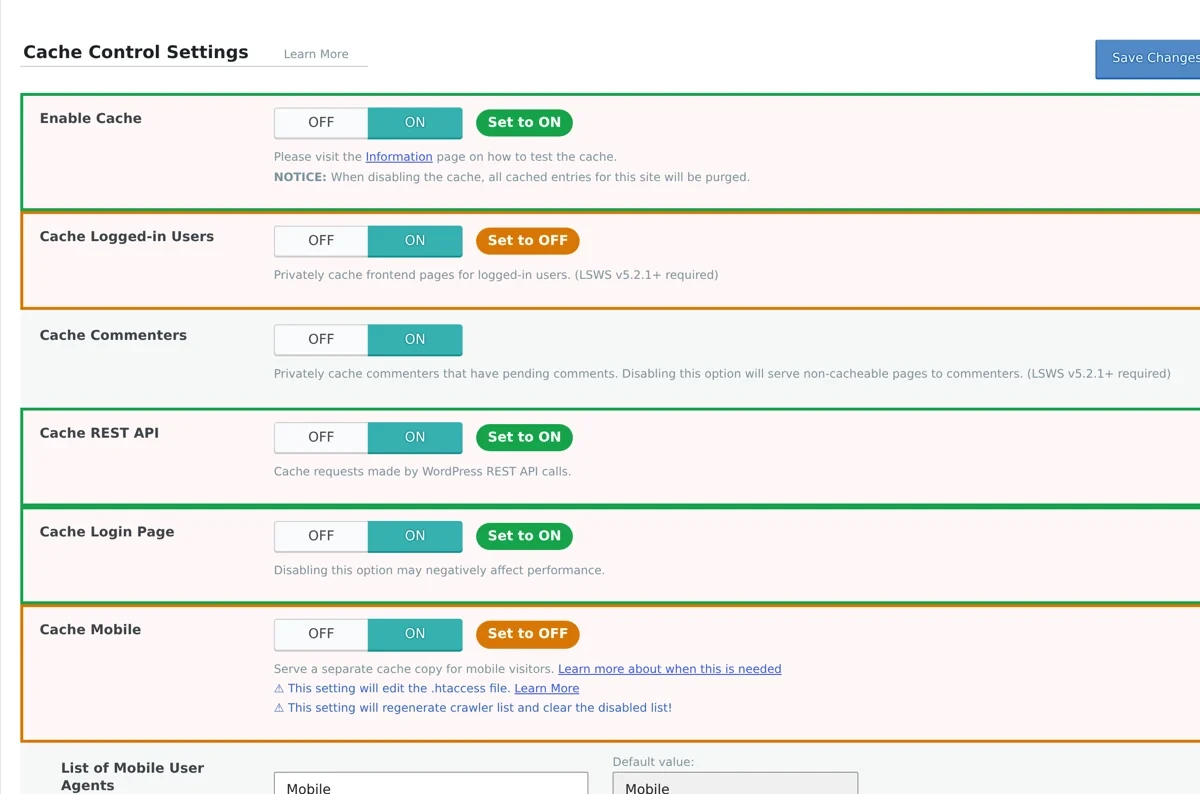
- Enable Cache: ON. This is the master switch that matters most.
- Cache Logged-in Users: OFF for most sites; ON only for membership or community sites.
- Cache Commenters, Cache REST API, Cache Login Page: ON.
- Cache Mobile: ON only if you serve a separate mobile theme, otherwise leave OFF.
| Cache setting | Recommended | Note |
|---|---|---|
| Enable Cache | ON | The master switch |
| Cache Logged-in Users | OFF | ON only for membership sites |
| Cache Commenters | ON | Safe default |
| Cache REST API | ON | Needed by the block editor |
| Cache Login Page | ON | Keeps the login page fast |
| Cache Mobile | OFF | ON only with a separate mobile theme |
Step 3: TTL
Leave the defaults unless you have a reason not to: public pages 604800 seconds (one week), front page 604800, feeds 604800. Shorten the front-page TTL to 86400 (one day) only if your homepage changes daily.
Step 4: Purge
Keep Purge All on Upgrade ON, and leave the auto-purge rules at their defaults so publishing a post clears the right pages. Serve Stale ON is a nice touch: visitors get the slightly old cached page while a fresh one is built in the background.
Step 5: Object Cache (Redis or Memcached)
If your host offers Redis or Memcached, go to Cache, Object and turn it ON. Object cache stores database query results in memory, which makes dynamic pages, dashboards and WooCommerce carts much faster. It is one of the biggest wins on a store, so it also features in our guide to the best managed WooCommerce hosting. Pick Redis if you have it, set the host and port your host provides, and give each site its own database ID if several share one Redis server.
Step 6: Browser Cache
Under Cache, Browser, turn Browser Cache ON. This adds Cache-Control and Expires headers so returning visitors load your logo, CSS and fonts from their own device instead of downloading them again.
Step 7: CSS Settings tab
- CSS Minify: ON, safe and shrinks file size.
- CSS Combine: OFF to start. It merges files into fewer requests but can break sites that load CSS in a set order. Test before enabling.
- Generate UCSS and Load CSS Asynchronously: ON. Together they ship only the CSS a page needs and stop stylesheets from blocking the first paint, a direct Core Web Vitals win.
- If async CSS makes your page flash unstyled, keep Generate Critical CSS ON so above-the-fold styles load first.
Step 8: JS Settings tab
- JS Minify: ON.
- JS Combine: OFF to start, same reasoning as CSS Combine.
- Load JS Deferred: ON (Deferred, not Delayed, is the safer first choice) so scripts stop blocking rendering.
- JS Delay: turn ON only if you need it, then add any broken scripts to the tuning exclusions.
| CSS / JS setting | Recommended | Risk |
|---|---|---|
| CSS Minify | ON | None, safe |
| CSS Combine | OFF first | Can break load order |
| Generate UCSS | ON | Safe, add exclusions if needed |
| Load CSS Asynchronously | ON | Pair with Critical CSS |
| JS Minify | ON | None, safe |
| JS Combine | OFF first | Can break scripts |
| Load JS Deferred | ON | Safe first choice |
| JS Delay | Optional | Test, then exclude broken scripts |
Step 9: HTML and Media Settings tabs
- HTML Minify: ON, safe.
- DNS Prefetch and Preconnect: add the domains of your fonts and CDN.
- Lazy Load Images: ON, but exclude your logo and the first hero image so they load instantly.
- Add Missing Image Dimensions: ON, this stops layout shift (CLS).
- Viewport Images (VPI): ON, it preloads above-the-fold images for a faster LCP.
Step 10: Localization and Fonts
- Font Display: Swap: ON so text shows while fonts load.
- Load Google Fonts Asynchronously or Remove Google Fonts: ON to kill a common render-blocker.
- Localize Resources: ON to serve third-party scripts from your own domain.
- Remove Emoji and remove unused CSS/JS where offered: ON.
Step 11: CDN
Under CDN, enable QUIC.cloud CDN after linking your domain key, for a global edge network built for LiteSpeed. If you already use Cloudflare, use the dedicated Cloudflare setting instead of the generic CDN mapping so purging stays in sync. For the bigger picture on caching layers, see our guide to debugging CDN caching issues.
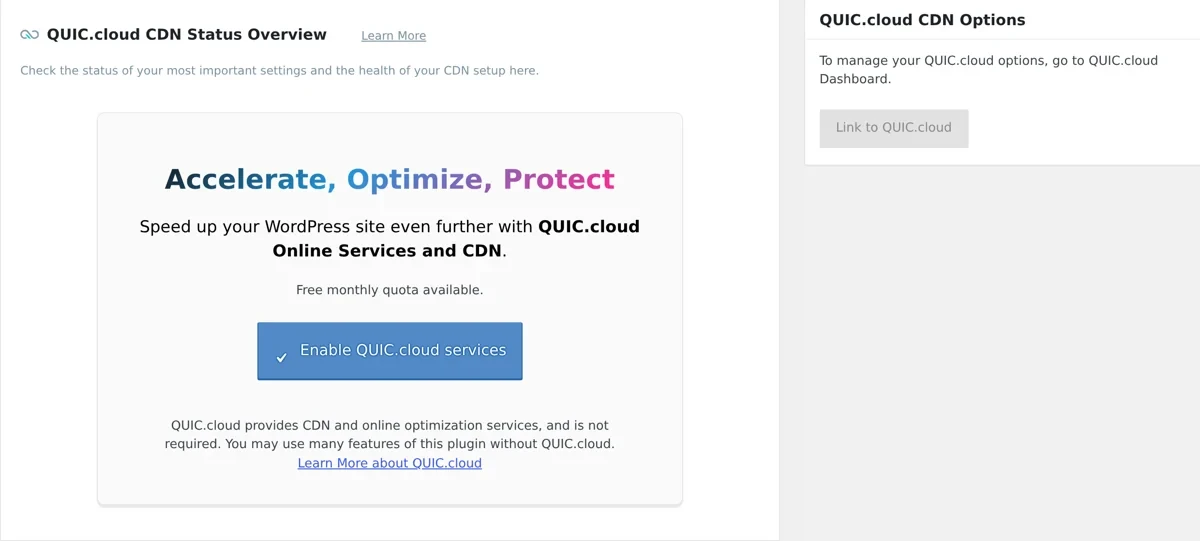
Set up the QUIC.cloud CDN
QUIC.cloud is the CDN built for LiteSpeed, with a free tier that suits most small sites. To set it up:
- In General, click Request Domain Key, wait a minute, then Link to QUIC.cloud and create a free account.
- In your QUIC.cloud dashboard, enable the CDN for your domain and point your DNS as it instructs.
- Back in CDN, turn QUIC.cloud CDN ON.
- In the QUIC.cloud dashboard under CDN Config, enable QUIC backend, block author scan, block XML-RPC and hotlink protection.
- Purge All, then load your site in incognito to confirm assets are served from the CDN.
Step 12: Image Optimization
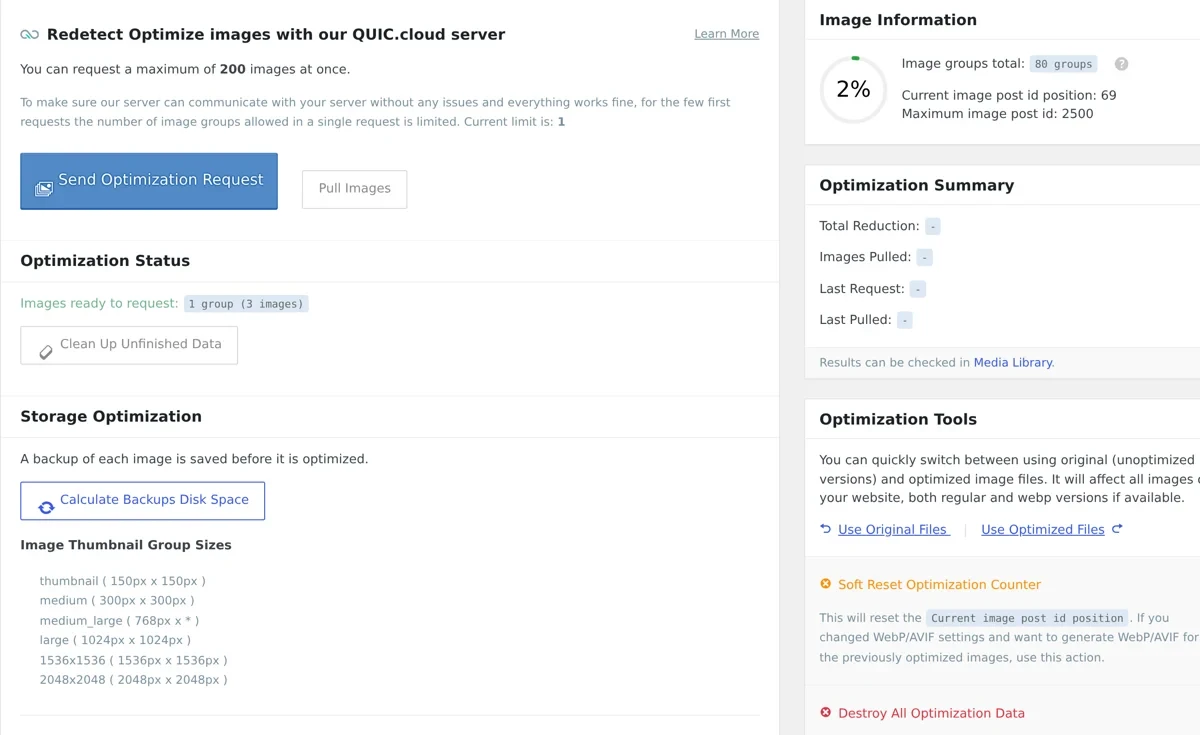
Go to Image Optimization, click Send Optimization Request, and turn ON Auto Request Cron, Image WebP Replacement and Preserve EXIF. QUIC.cloud compresses your images and serves next-gen WebP, which is often the single biggest payload saving on an image-heavy site.
Step 13: Crawler
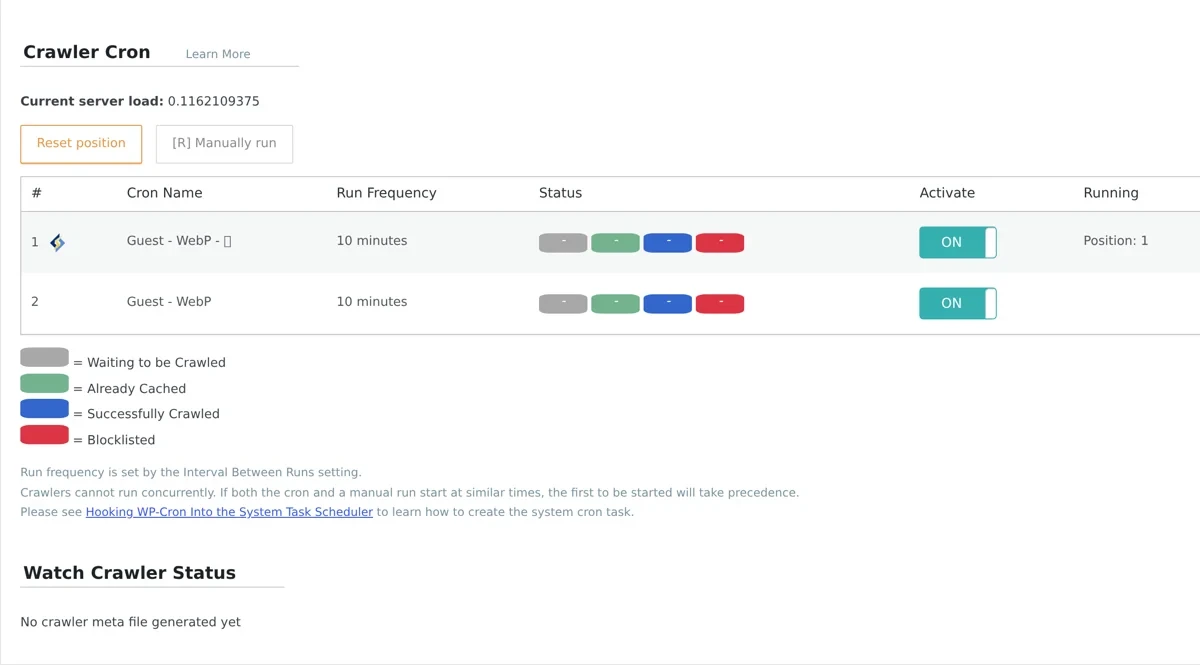
The Crawler keeps your cache warm by visiting pages before real users do, so almost everyone hits a cached page. Turn it ON and leave the interval and server load limit at their defaults. Note that some shared hosts disable the crawler, in which case Guest Mode already covers most of the benefit.
Step 14: Database cleanup
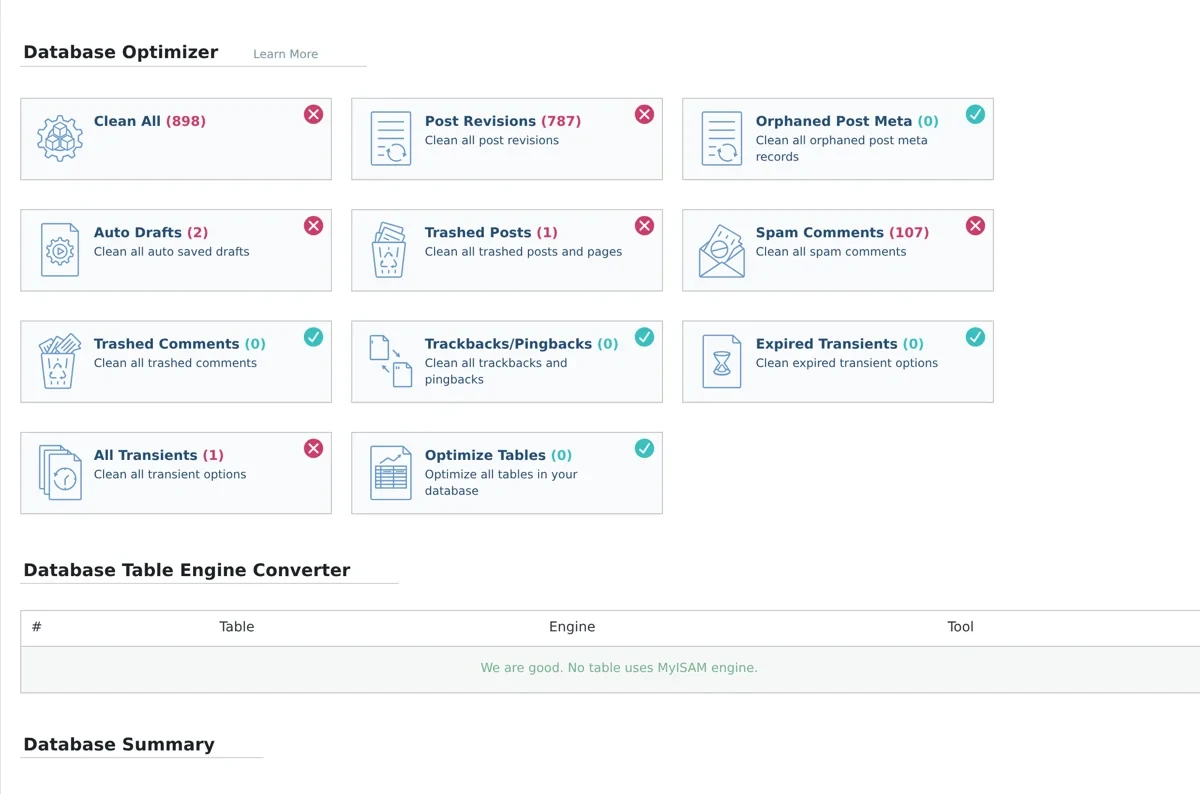
Under Database, clean post revisions, auto-drafts, trashed posts, spam comments and expired transients. Then check Database, Optimization for large autoloaded options, which quietly slow every page load. Do this monthly.
Step 15: Toolbox
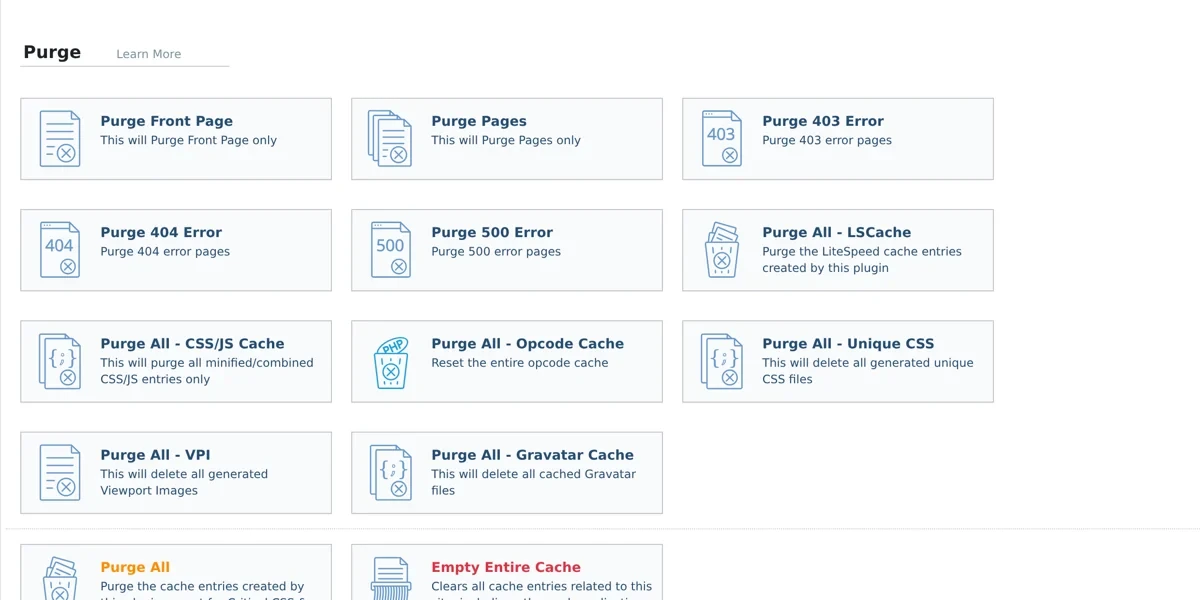
Toolbox, Purge is your reset button after changes. Use Import / Export to copy a working configuration to another site, and only enable Debug while actively troubleshooting, then switch it off.
Best LiteSpeed Cache settings cheat sheet
| Setting | Recommended | Why |
|---|---|---|
| Enable Cache | ON | The core page cache |
| Cache Logged-in Users | OFF | Avoids serving private pages to others |
| Browser Cache | ON | Returning visitors reuse static files |
| Object Cache (Redis) | ON if available | Faster dynamic and WooCommerce pages |
| CSS / JS Minify | ON | Smaller files, no risk |
| Combine CSS / JS | OFF first | Can break load order, test before use |
| Load CSS Async + UCSS | ON | Stops render-blocking CSS, helps LCP |
| Load JS Deferred | ON | Scripts stop blocking the page |
| Lazy Load Images | ON (exclude hero) | Lighter initial load |
| WebP Replacement | ON | Next-gen images, big payload cut |
| Guest Mode + Optimization | ON | Instant fast page for new visitors |
| Crawler | ON | Keeps the cache warm |
LiteSpeed Cache settings that can break your site
If your site looks wrong after setup, the cause is almost always optimisation, not caching. Turn these off one at a time and Purge All between each:
- CSS Combine and JS Combine: the most common cause of broken layouts and sliders.
- JS Delay: can stop menus, forms or chat widgets from working until you exclude them.
- Load CSS Asynchronously without Critical CSS: causes a flash of unstyled content.
- Lazy Load on the logo or hero image: makes the top of the page appear slowly.
- Remove Unused CSS (UCSS): occasionally strips styles a page actually needs, add exclusions.
The pattern is simple: caching rarely breaks anything, optimisation sometimes does, so troubleshoot your optimisation LiteSpeed Cache settings first.
How these settings help Core Web Vitals and SEO
Speed is a Google ranking signal, and LiteSpeed Cache targets the exact metrics Google measures. Page cache and the crawler cut server response time (TTFB). Critical CSS, deferred JS and font swap improve Largest Contentful Paint. Image dimensions and lazy-load exclusions reduce layout shift (CLS). The result is a faster site that passes Core Web Vitals, which supports both traditional rankings and how AI search engines judge your pages. If speed is part of a bigger ranking problem, our technical SEO service audits the whole picture.
Frequently asked questions
Rather not configure all this yourself? Our WordPress speed optimization service applies these settings for you, fixes Core Web Vitals and gives you a before and after report.
What are the best LiteSpeed Cache settings for most sites?
Apply the Advanced preset, enable cache, browser cache and object cache, turn on CSS and JS minify with async CSS and deferred JS, enable WebP and Guest Mode, and leave Combine CSS and JS off until you test them.
Does LiteSpeed Cache work without a LiteSpeed server?
The page cache needs LiteSpeed or OpenLiteSpeed, but the optimisation features, QUIC.cloud CDN and image optimisation work on any host.
Should I turn on Combine CSS and JS?
Not at first. Minify is safe, but Combine can break sites that load files in a set order. Enable it only after testing, and purge the cache to check.
Is LiteSpeed Cache better than WP Rocket?
On LiteSpeed servers, yes, because the cache is server-level and it is free. WP Rocket is a strong choice on Apache or NGINX where LiteSpeed page cache is not available.
What should Cache Logged-in Users be set to?
OFF for most sites, so private or personalised pages are never served to other visitors. Turn it ON only for membership or community sites, with care.
How do I fix a broken layout after enabling LiteSpeed Cache?
Purge all, then disable CSS Combine, JS Combine and JS Delay one at a time. Optimisation, not caching, causes almost every layout issue.
Does LiteSpeed Cache improve Core Web Vitals?
Yes. Caching lowers server response time, critical CSS and deferred JS improve LCP, and image dimensions reduce layout shift, all of which lift your Core Web Vitals scores.
Do I need QUIC.cloud?
It is optional but recommended. QUIC.cloud powers the CDN, image optimisation and critical CSS, and the free tier is enough for most small sites.
Set these best LiteSpeed Cache settings once, test in incognito, and your WordPress site will be measurably faster. Revisit your LiteSpeed Cache settings after any theme or plugin change. If you want speed handled as part of a full ranking strategy, see our technical SEO service or read how to debug CDN caching issues.
Tell Google you want more of this.
Add DigitalPrahlad as a preferred sourceOne tap, and this site shows up more often in your own Google Top Stories, AI Overviews, and AI Mode results. You can remove this preference anytime you'd like.
Affiliate Disclaimer: This website is reader-supported. Some links are affiliate links, meaning I may earn a small commission at no extra cost to you. I only recommend products and tools I genuinely trust and use myself. Your support keeps DigitalPrahlad free and practical.