Search delete trending searches and you’ll land on guides that all skip the same detail: there’s no history file sitting in your account waiting to be erased. Trending searches aren’t something you’ve done, they’re a live suggestion list Google generates for everyone, and the only thing you can actually control is whether that list shows up under your search box at all. Once you know that, the fix takes under a minute.
I’m Prahlad, and I verified every step in this guide directly against Google’s own current Search Help documentation rather than repeating screenshots from an old article. The setting is called Autocomplete with trending searches, it lives in a slightly different menu depending on whether you’re using the Google app, a mobile browser, or a desktop browser, and turning it off in one place doesn’t turn it off everywhere else. That’s the part most guides gloss over, and it’s exactly why people keep searching for this fix even after they think they’ve already done it.
Whether you’re on Android, iPhone, or a regular computer, every method below takes the same three or four taps. Pick your platform, follow the exact menu names Google actually uses, and you’re done.
What Are Trending Searches, and Can You Actually Delete Them?
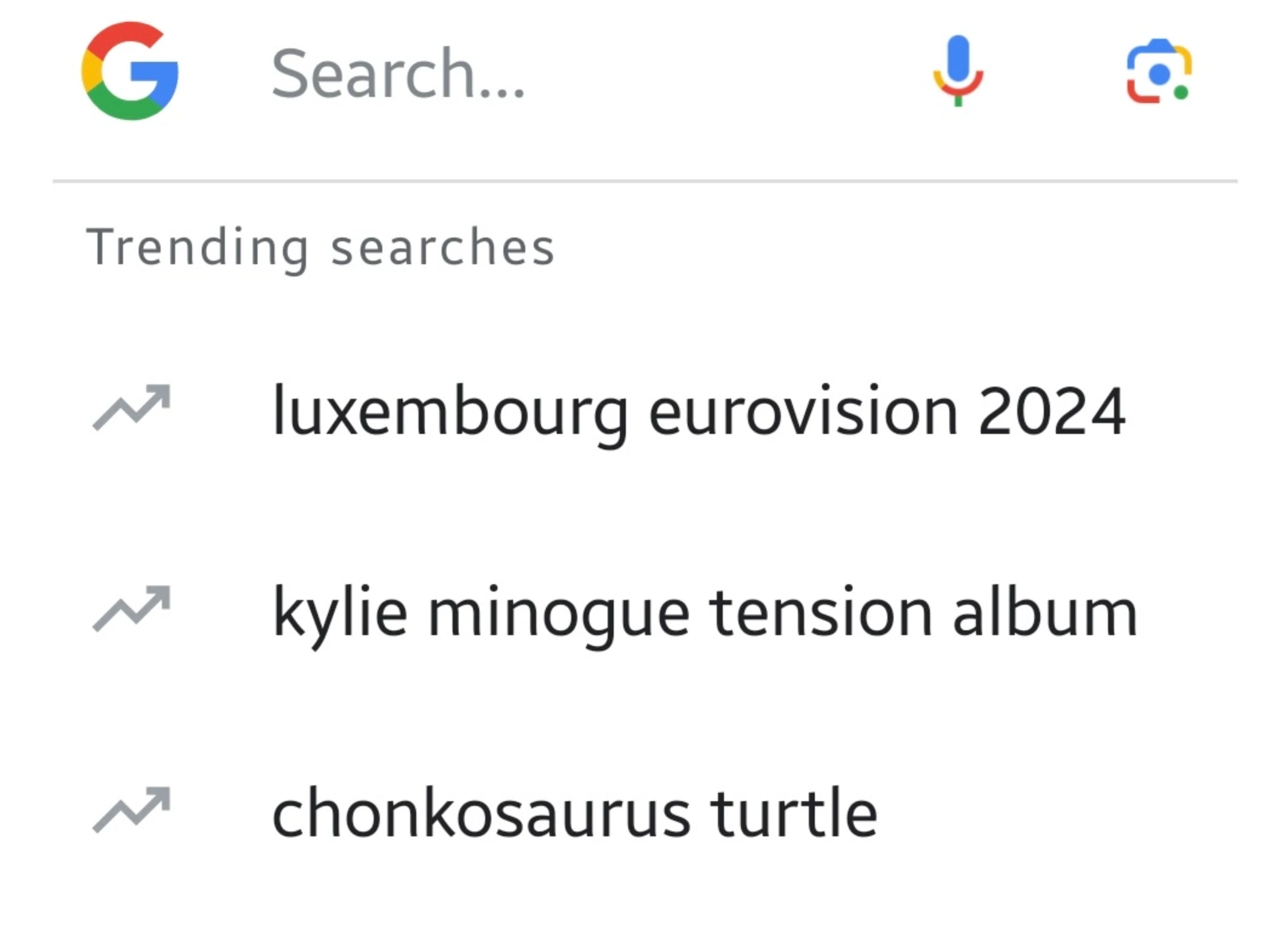
Trending searches are the dropdown of popular queries Google shows under the search box on google.com and inside the Google app, built from what a large number of people are searching for right now, not from anything you personally typed. That’s the key distinction: your actual search history lives under a completely separate setting called Search personalization, and clearing that requires visiting your Google Account’s activity controls, not the autocomplete menu covered here.
So delete isn’t technically accurate, but the practical fix people want, making that list disappear, absolutely exists. Google calls the setting Autocomplete with trending searches, and switching it off removes the suggestion list going forward. It won’t touch your saved search history, your account activity, or anything tied to your Google identity, it only controls whether that one dropdown appears.
Quick Steps to Turn Off Trending Searches
✅ Fastest Method (Google App)
- Open the Google app on your phone
- Tap your profile picture (top right) → Settings
- Tap Other settings (Android also has an extra Autocomplete settings tap here)
- Turn off Autocomplete with trending searches
This only affects the Google app on the device you’re using. Using a browser too? Jump to the browser section below.
How to Turn Off Trending Searches on Android (Google App)
This is the setting most people mean when they search for this fix, since the Google app is usually the default search shortcut on Android home screens. The toggle sits one menu deeper here than on other platforms, so don’t stop at Other settings if you don’t see it right away.
- Open the Google app.
- Tap your profile picture or initial in the top-right corner.
- Tap Settings, then Other settings.
- Tap Autocomplete settings.
- Turn off Autocomplete with trending searches.
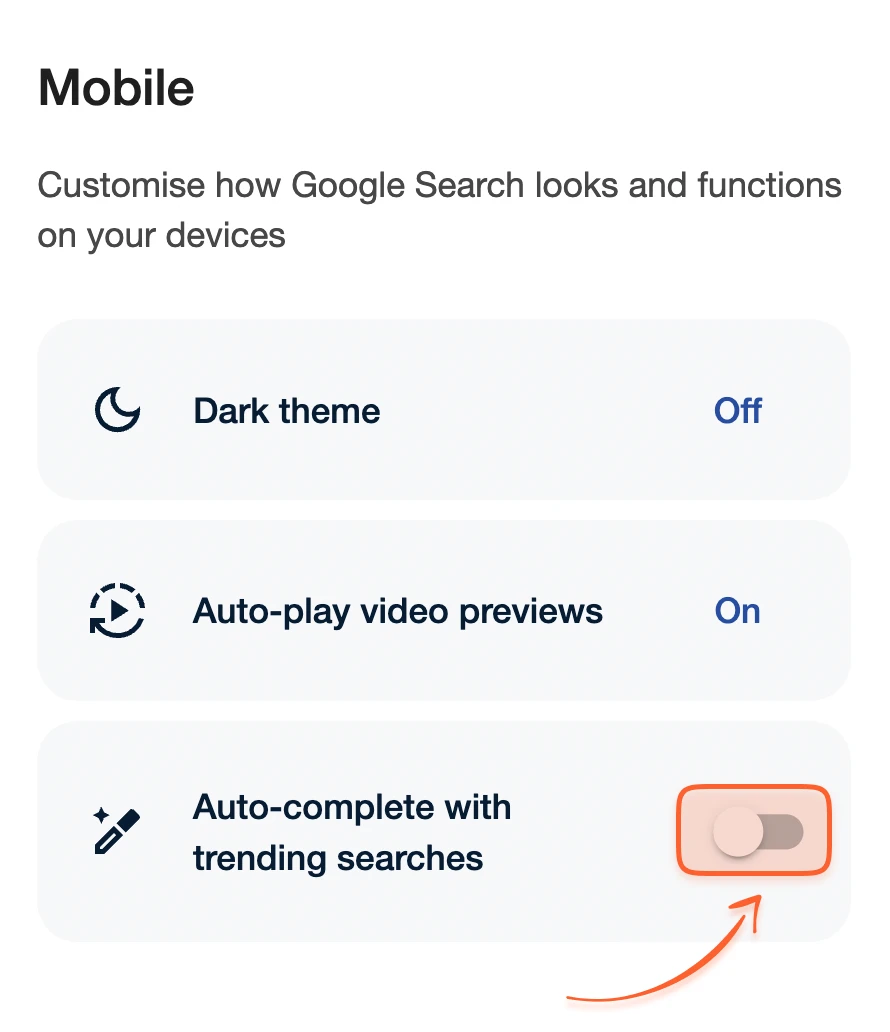
Google’s own documentation is explicit about scope here: this change only applies to the Google app on the specific phone or tablet you just changed it on. Signing into the same account on a second phone won’t carry the setting over, you’ll need to repeat these steps there too.
How to Turn Off Trending Searches on Android (Chrome, Firefox, or Any Browser)
If you search from Chrome, Firefox, or any other browser instead of the standalone Google app, the setting lives on google.com itself, and the menu path is shorter than the app version, no separate Autocomplete settings screen to dig through.
- Open your browser and go to google.com.
- Tap your profile picture or initial in the top-right corner.
- Tap More settings, then Other settings.
- Turn off Autocomplete with trending searches.
This is a browser-level setting, not an app-level one, so it applies to google.com regardless of which browser you used to change it, but it’s entirely separate from the Google app toggle above. If you use both, you need to turn this off twice.
How to Turn Off Trending Searches on iPhone or iPad (Google App)
The iOS version of the Google app skips the extra Autocomplete settings sub-menu that Android has, the toggle sits directly under Other settings instead, so the path here is actually one tap shorter.
- Open the Google app.
- Tap your profile picture or initial in the top-right corner.
- Tap Settings, then Other settings.
- Turn off Autocomplete with trending searches.
Same scope rule applies as Android: this only changes the Google app on the specific iPhone or iPad you’re holding, not your Google Account globally.
How to Turn Off Trending Searches on iPhone or iPad (Safari, Chrome, or Any Browser)
Whether you’re using Safari, Chrome, or Firefox on an iPhone or iPad, the browser-based fix is identical to Android’s browser method above, since it’s the google.com website’s own settings menu, not anything specific to iOS.
- Open your browser and go to google.com.
- Tap your profile picture or initial in the top-right corner.
- Tap More settings, then Other settings.
- Turn off Autocomplete with trending searches.
How to Turn Off Trending Searches on Windows, Mac, or Any Computer
On a computer, the setting isn’t tied to a specific browser like Chrome versus Firefox, it’s a property of the google.com search settings page itself, so the same steps work no matter which browser you open it in.
- Go to google.com.
- Click Settings at the bottom of the page, then Search settings.
- Click Other settings in the left sidebar.
- Under the Desktop section, turn off Autocomplete with trending searches.
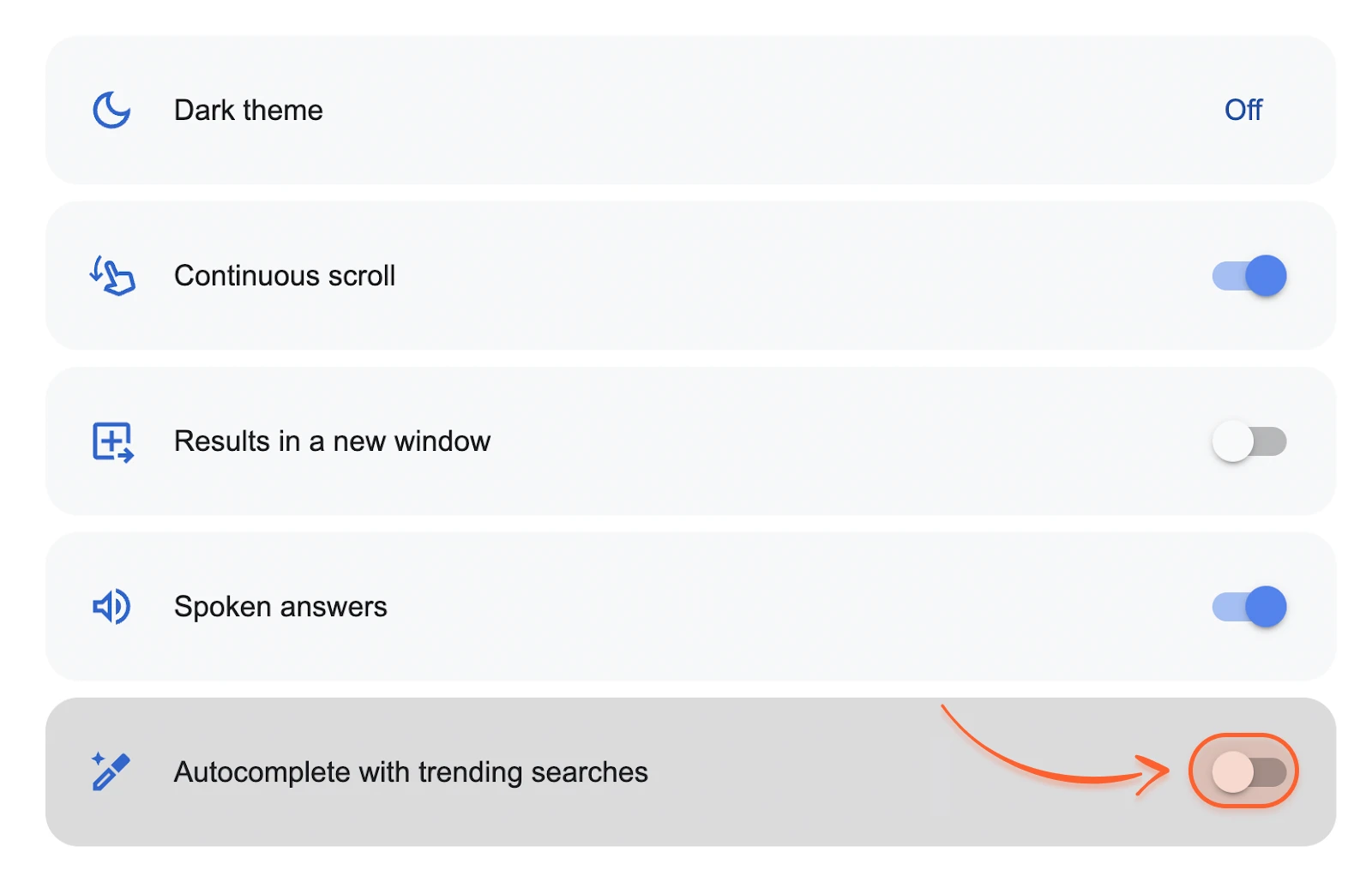
Google doesn’t publicly document whether this specific toggle syncs between different computers, so if you use more than one machine, check the setting on each one rather than assuming it carried over.
Does Turning This Off Also Clear Your Search History?
No, and this is worth separating clearly since the two get conflated constantly. Autocomplete with trending searches controls the public trending suggestion list. A different setting, Search personalization, controls whether Google uses your own search history to shape predictions and results while you’re signed in.
If you actually want to clear or limit your search history, that lives in your Google Account’s Web & App Activity settings, a completely separate control panel from the one covered in this guide. Turning off trending searches leaves your account history untouched either way.
Trending Searches Keep Coming Back? Try This
- You changed it in one place, not all of them. The Google app, mobile browser, and desktop browser each have their own separate toggle. Turning it off in one doesn’t affect the others.
- You’re signed out. Some autocomplete settings only apply while signed into your Google Account; sign in and check the toggle again.
- Cached data is showing an old state. Clear your browser’s cache and cookies for google.com, or force-close and reopen the Google app, then recheck the setting.
- You’re on a regional or alternate Google domain. Make sure you’re changing the setting on google.com directly, not a country-specific mirror, since settings don’t always carry across domains.
- The app or browser is outdated. Google occasionally moves settings around during rollouts; updating to the latest version usually restores the menu to where it’s documented.
Worth noting directly: Google’s own Search Help documentation carries a standing disclaimer that these settings are being updated and may not exactly match what you see, since the company tests interface changes in batches rather than rolling them out to everyone simultaneously. If a menu name here doesn’t match yours exactly, look for the closest equivalent rather than assuming the feature disappeared entirely.
A Few More Ways to Clean Up Your Search Experience
Once trending searches are off, a couple of related settings are worth a look if unwanted suggestions or tracking are the real issue behind why you searched for this fix in the first place.
- Turn off Search personalization if you don’t want your own search history influencing autocomplete predictions while signed in.
- Use Incognito or a private window for searches you don’t want factored into your account activity at all, without changing any permanent setting.
- Review your Google Account’s activity controls periodically, since autocomplete settings and search history controls are separate but often need attention together.
- Consider a privacy-focused browser setup if tracking generally is the concern; our best free VPN alternatives guide covers options beyond just search settings.
Frequently Asked Questions
Can you actually delete trending searches on Google?
Not in the sense of erasing a history file, since trending searches aren’t tied to your personal account activity in the first place. What you can do is turn off the Autocomplete with trending searches setting, which stops the suggestion list from appearing at all going forward.
Why do trending searches keep showing up after I turned them off?
The most common reason is that the Google app, your mobile browser, and your desktop browser each have a separate toggle for this setting. Turning it off in the Google app, for example, has no effect on what you see in Chrome or Safari, so each one needs to be disabled individually.
Does turning off trending searches delete my search history too?
No. Trending searches and your personal search history are controlled by two completely separate settings. Your search history is managed through Search personalization and your Google Account’s Web & App Activity controls, not through the autocomplete settings covered in this guide.
Can I turn off trending searches for good on every device at once?
Not with a single switch. Google’s own documentation confirms the Google app setting only applies to the specific phone or tablet you changed it on, and browser settings are separate from the app entirely. You’ll need to repeat the steps on each device and each browser you actually use.
Why can’t I find the Autocomplete with trending searches setting?
Google periodically moves settings around during interface updates, and its own help documentation notes that described menus may not always match your current experience. Try updating your app or browser to the latest version, and make sure you’re on google.com directly rather than a regional mirror domain.
Conclusion
There’s no delete button because there’s nothing of yours to delete, trending searches are a shared suggestion list, not a personal record, and Autocomplete with trending searches is the actual setting standing between you and a cleaner search box. Turn it off in the Google app, your mobile browser, and your desktop browser separately, since each one keeps its own copy of the setting, and you’re done in about the same time it took to read this sentence.
If the toggle refuses to stick, it’s almost always one of the five things in the troubleshooting section above, not a broken feature. Work through that list before assuming Google removed the option entirely.
Tell Google you want more of this.
Add DigitalPrahlad as a preferred sourceOne tap, and this site shows up more often in your own Google Top Stories, AI Overviews, and AI Mode results. You can remove this preference anytime you'd like.
Affiliate Disclaimer: This website is reader-supported. Some links are affiliate links, meaning I may earn a small commission at no extra cost to you. I only recommend products and tools I genuinely trust and use myself. Your support keeps DigitalPrahlad free and practical.